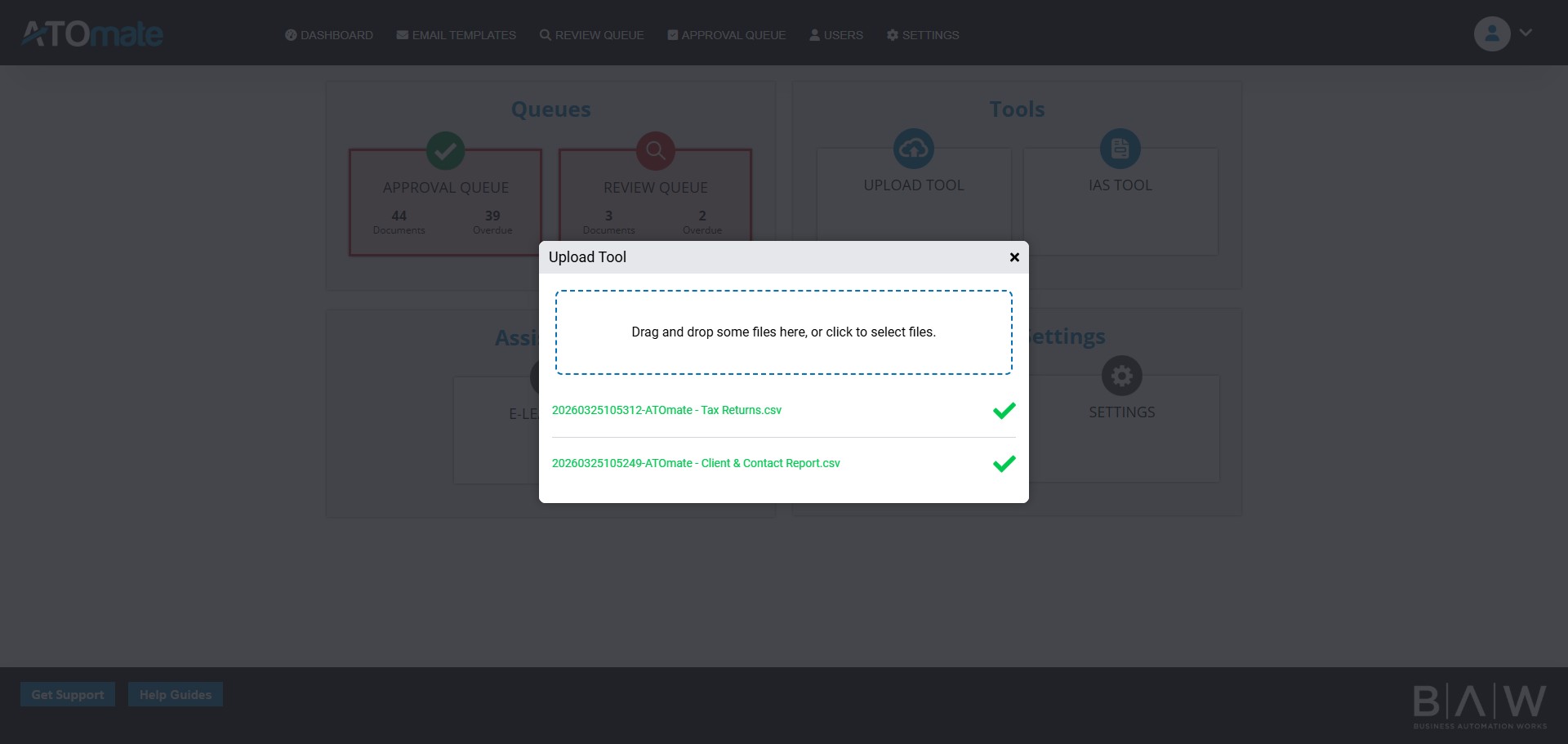
ATO Mate reports upload from XPM
Mar 24, 2026●
1
Navigate to https://practicemanager.xero.com/reports/my
2
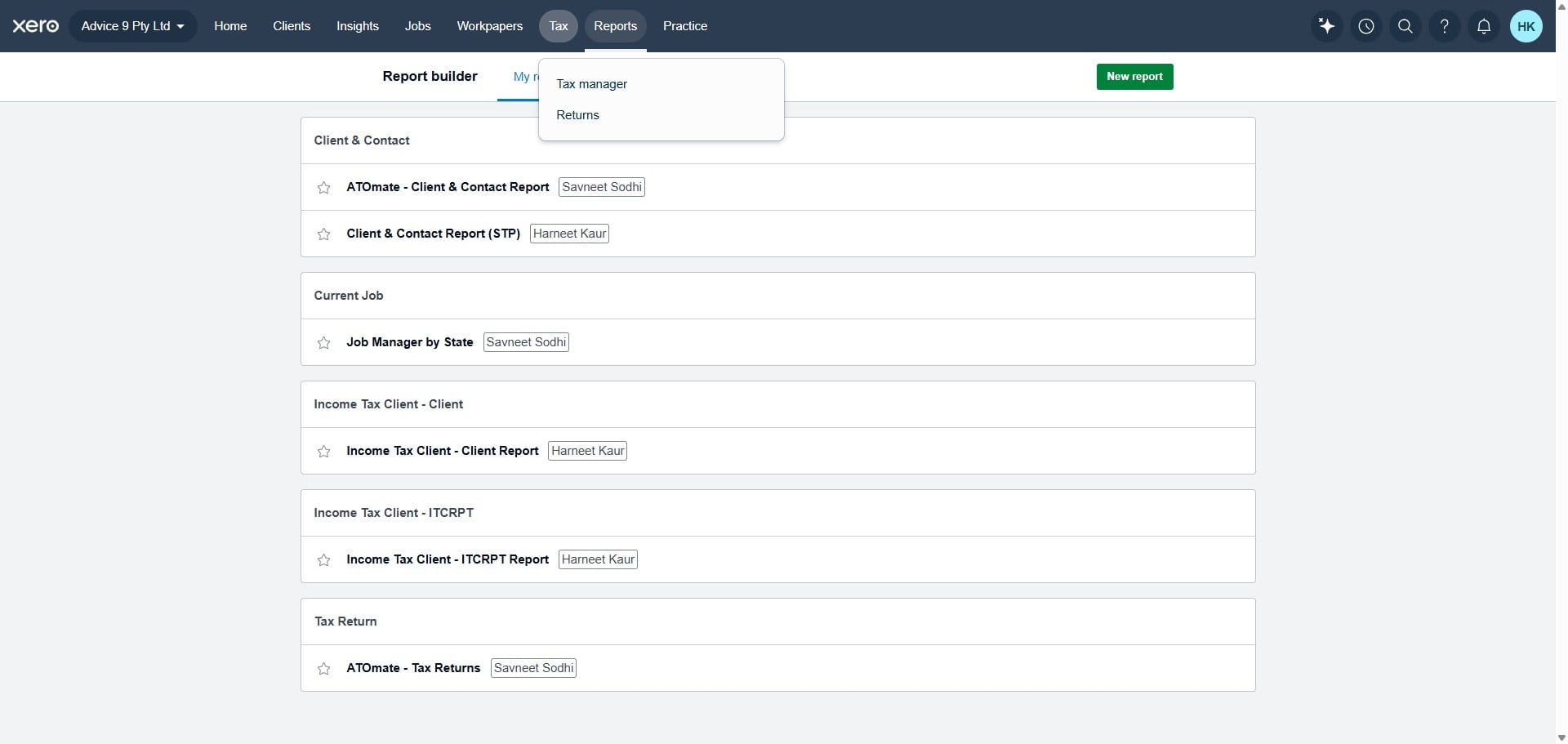
Click Reports
3
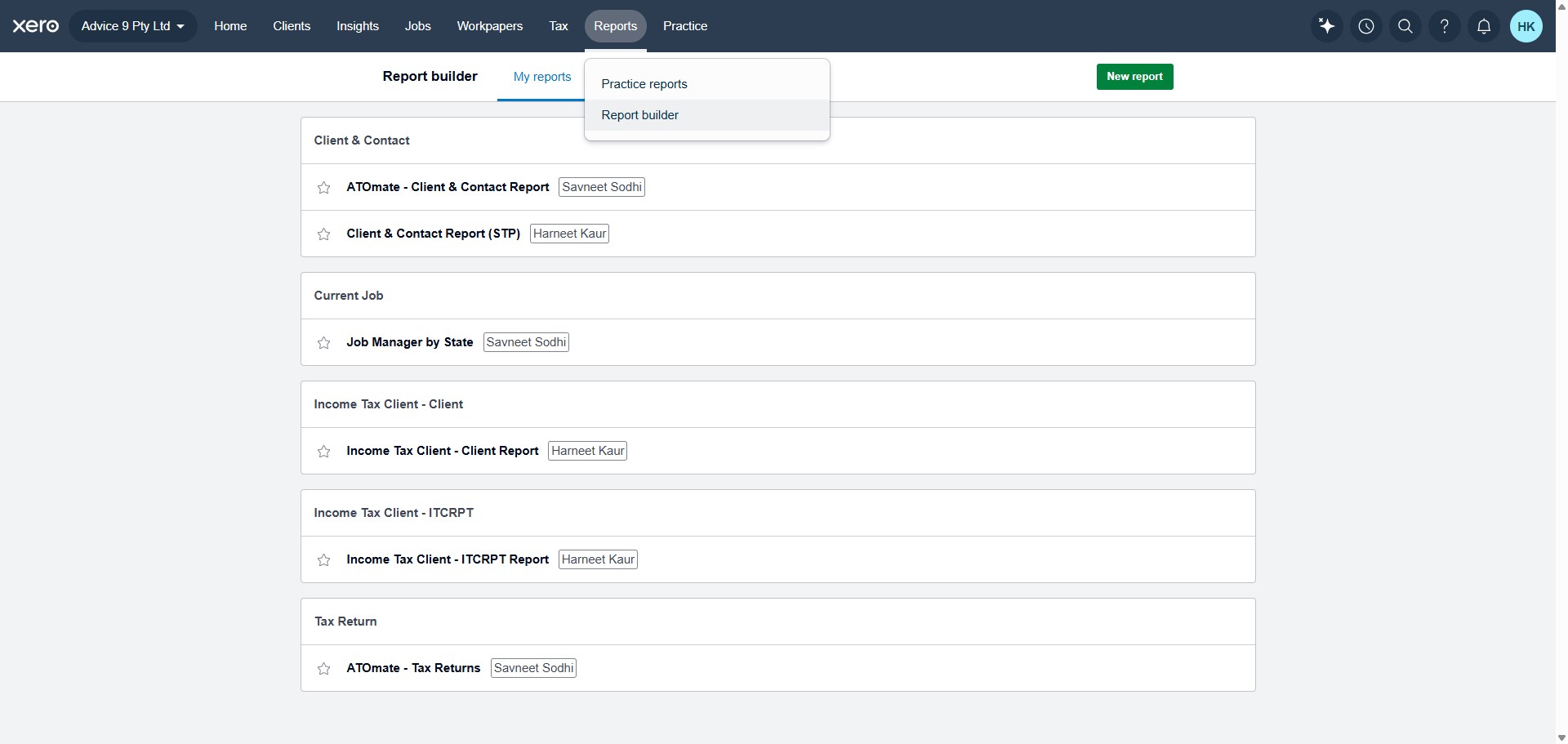
Click on "Report builder"
4
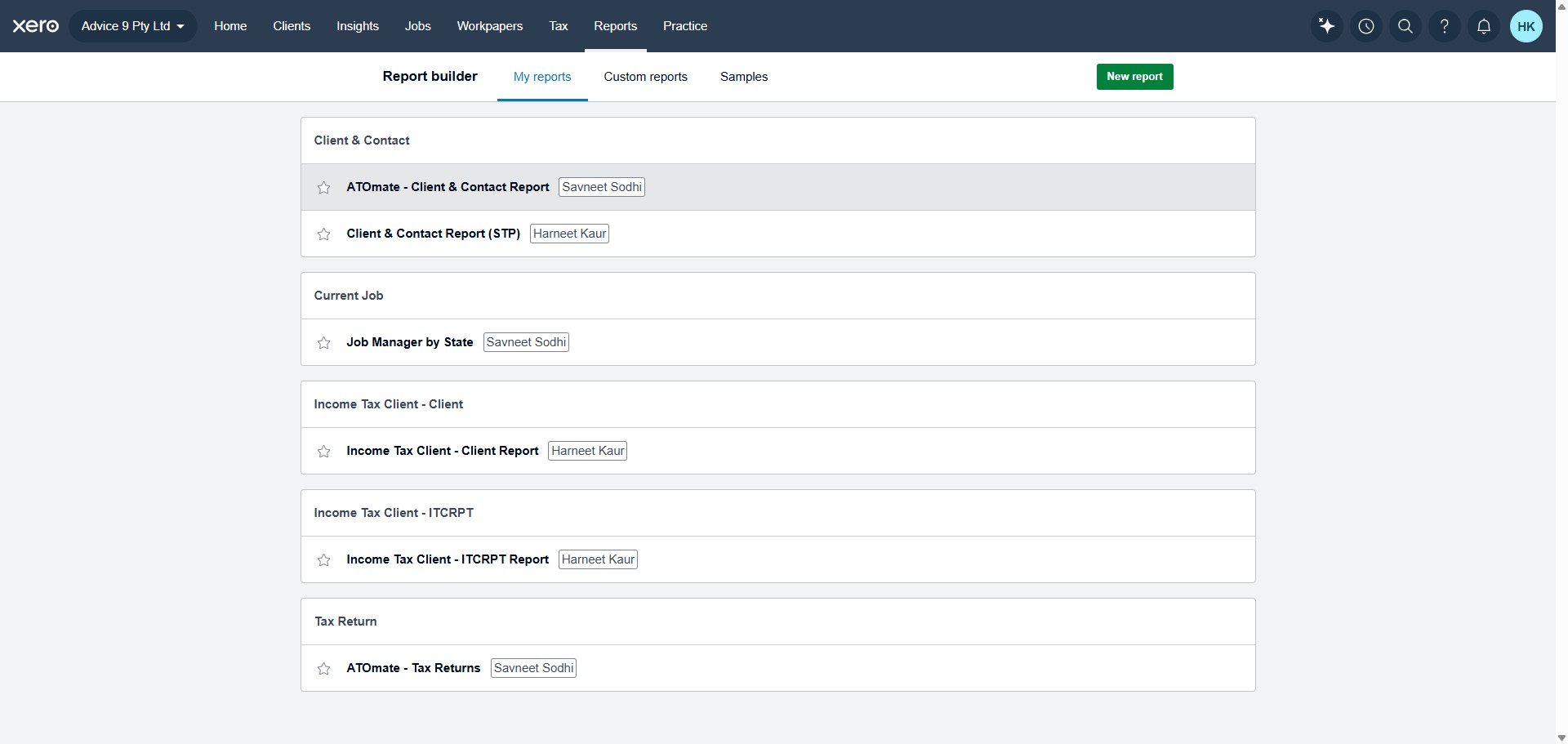
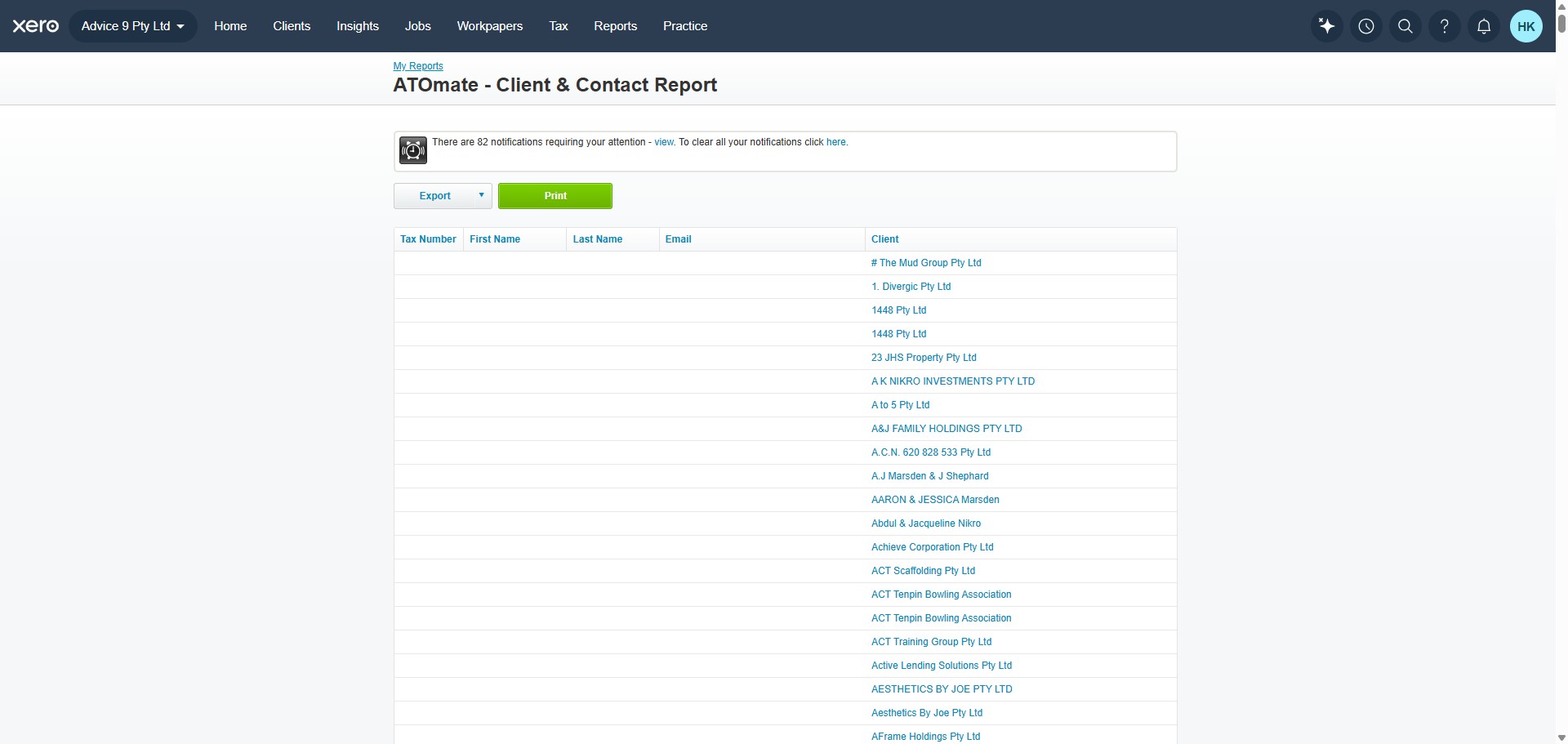
Click on "ATOmate - Client & Contact Report"
5
Export the report in csv and save in downloads or documents
6
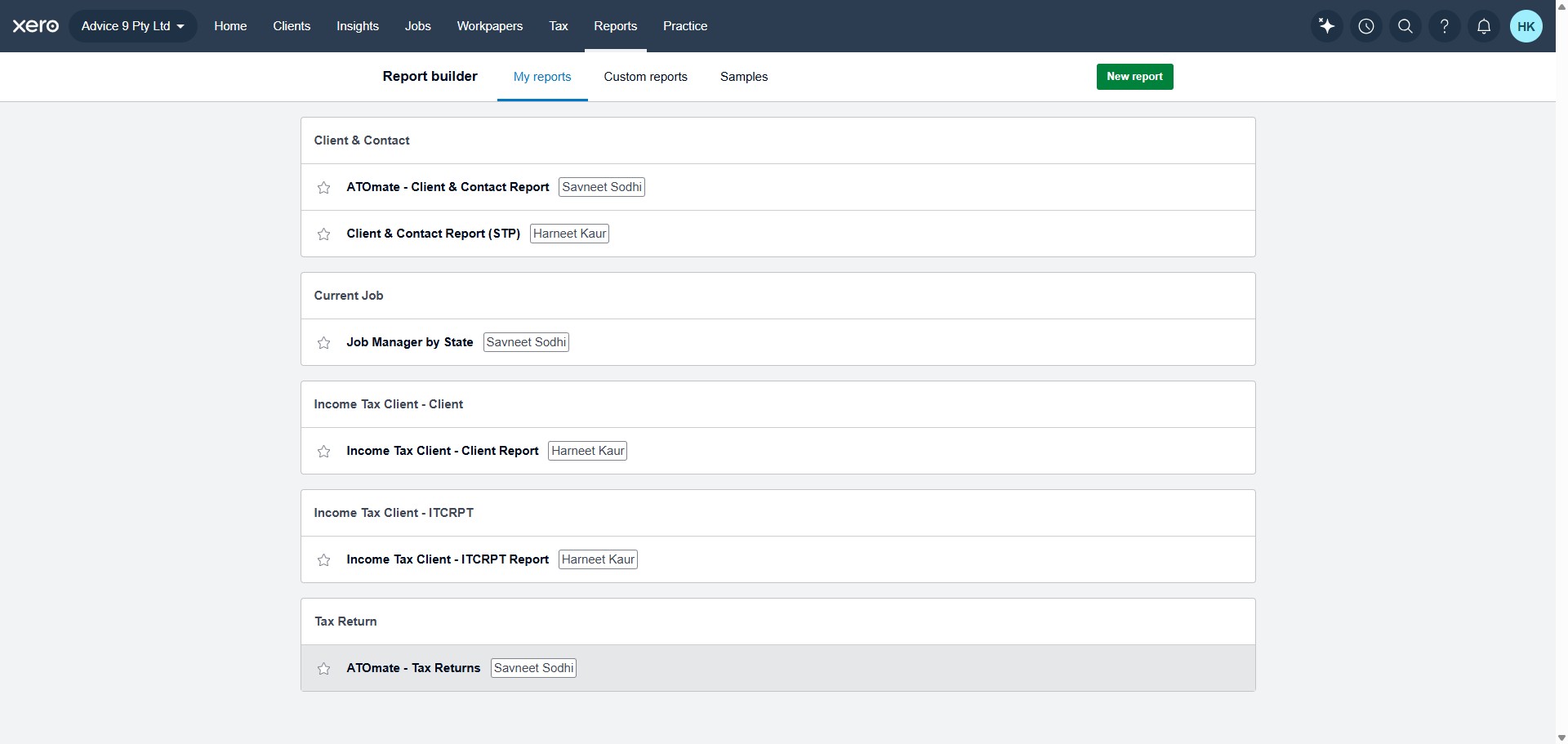
Click on "ATOmate - Tax Returns"
7
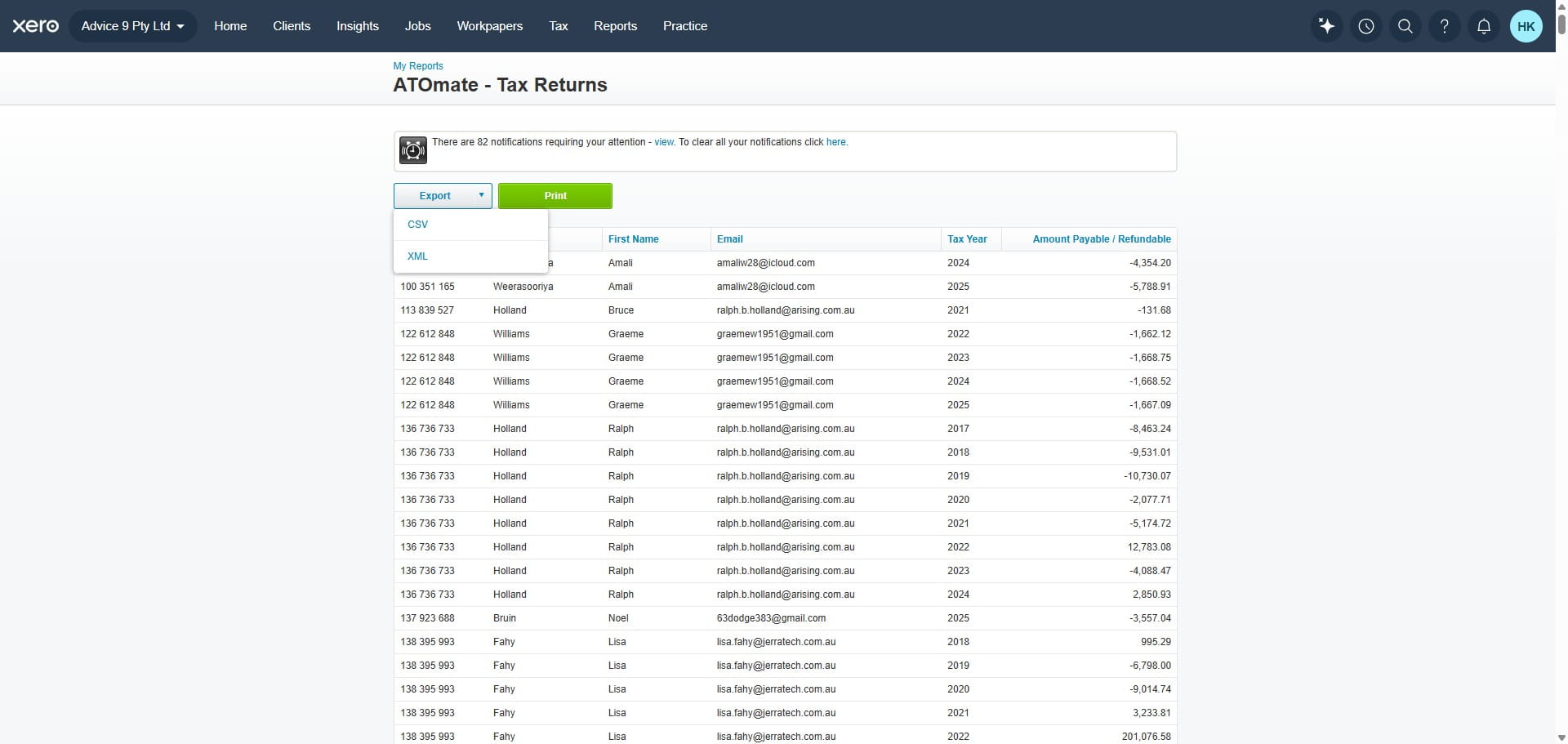
Export in csv and save
8
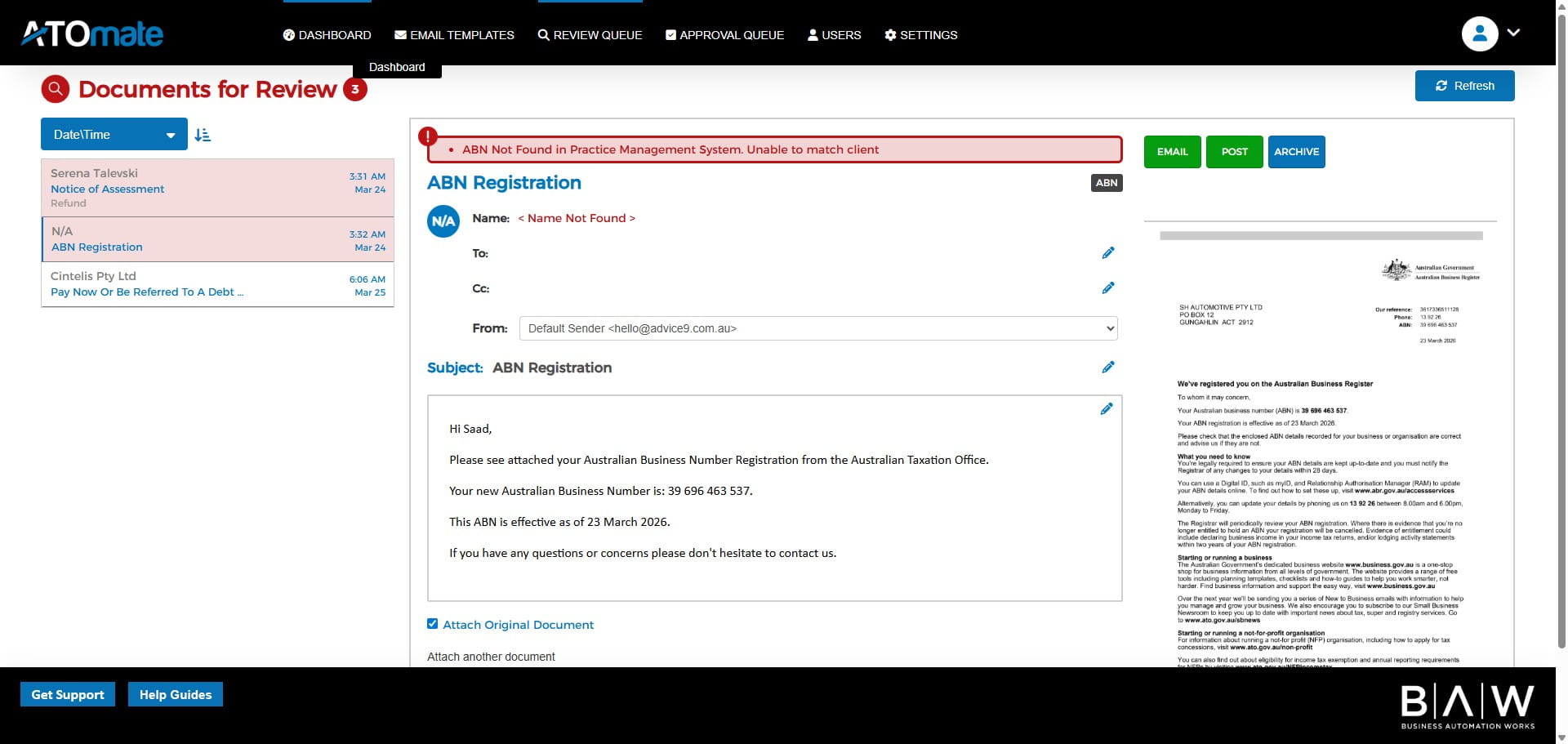
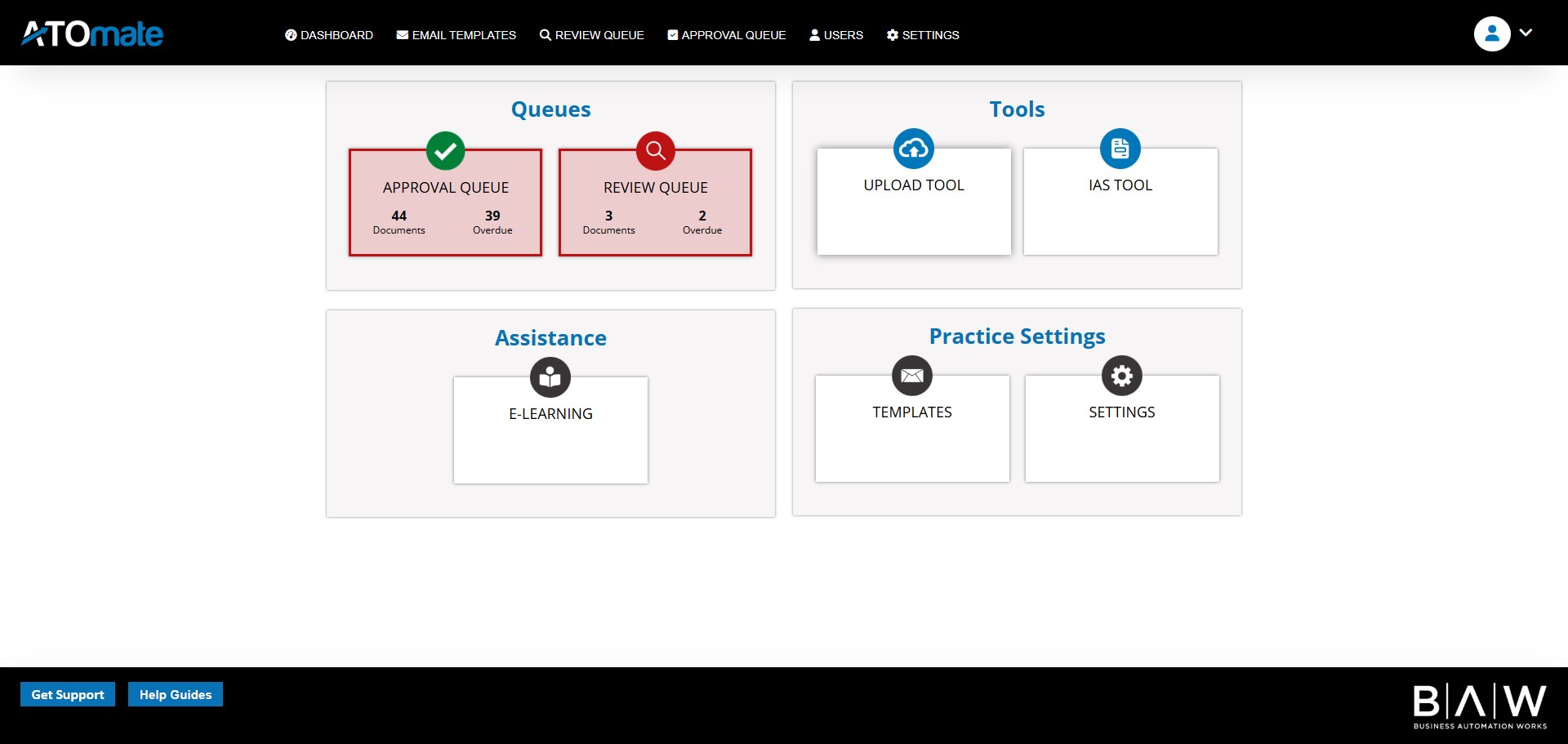
Go to Dashboard
9
Click on upload tool
10
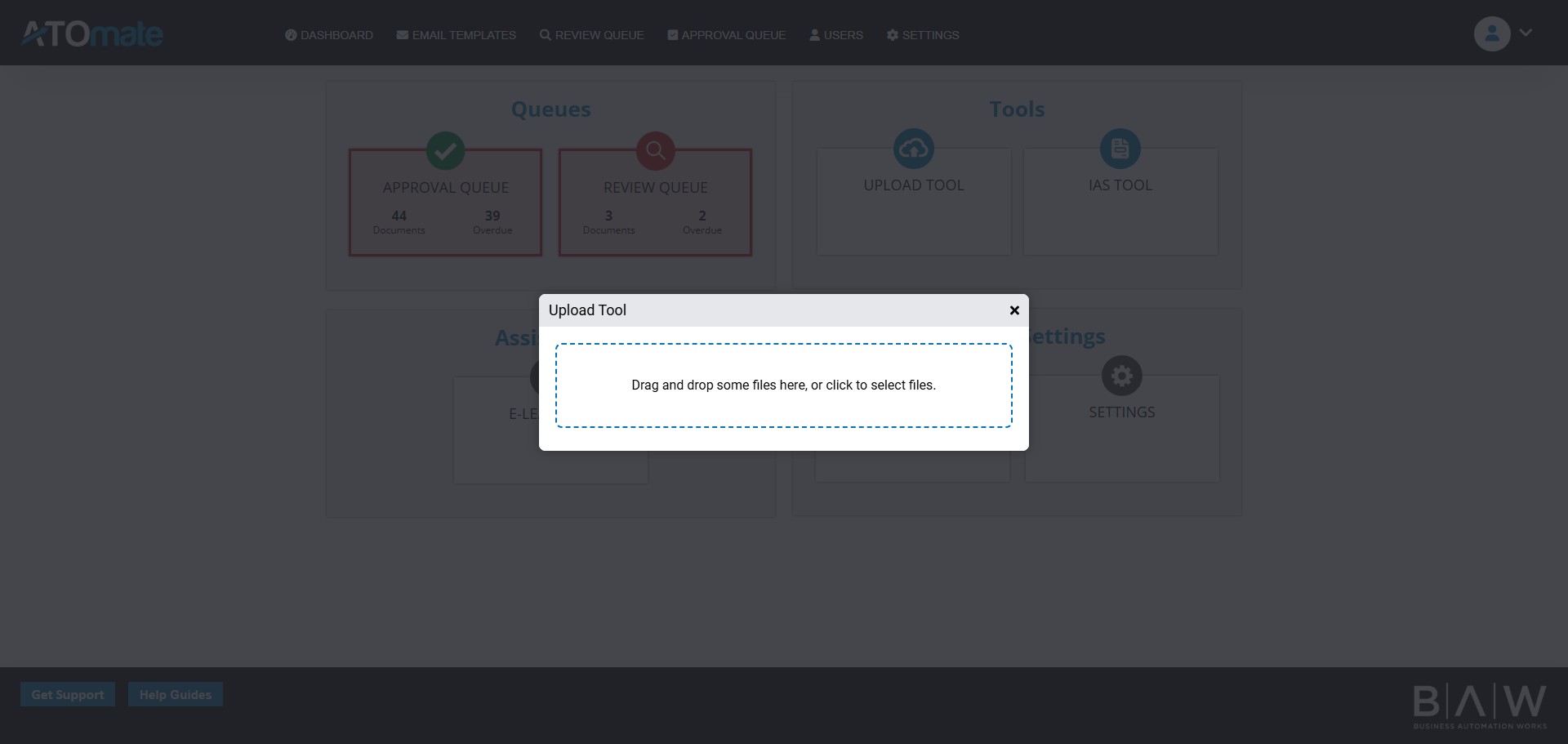
Click on "Drag and drop some files here, or click to select "
11
When it shows the green icon, it means this is exported in ATO Mate