Share Transfer Form 484 C3 | NowInfinity Corporate Messenger
Navigate to https://mria.nowinfinity.com.au/#/company/ Then select on the company profile
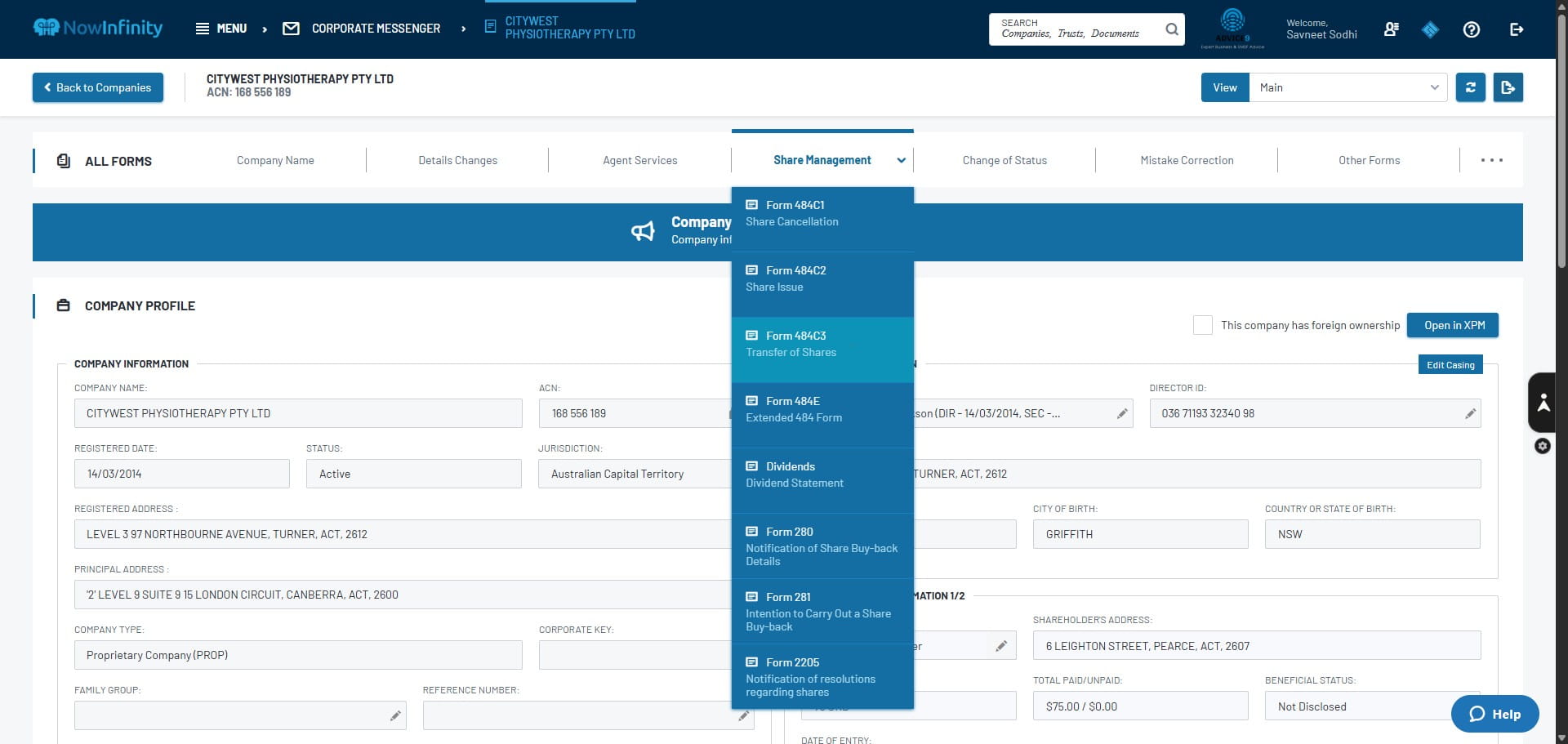
Click on "Form 484C3"
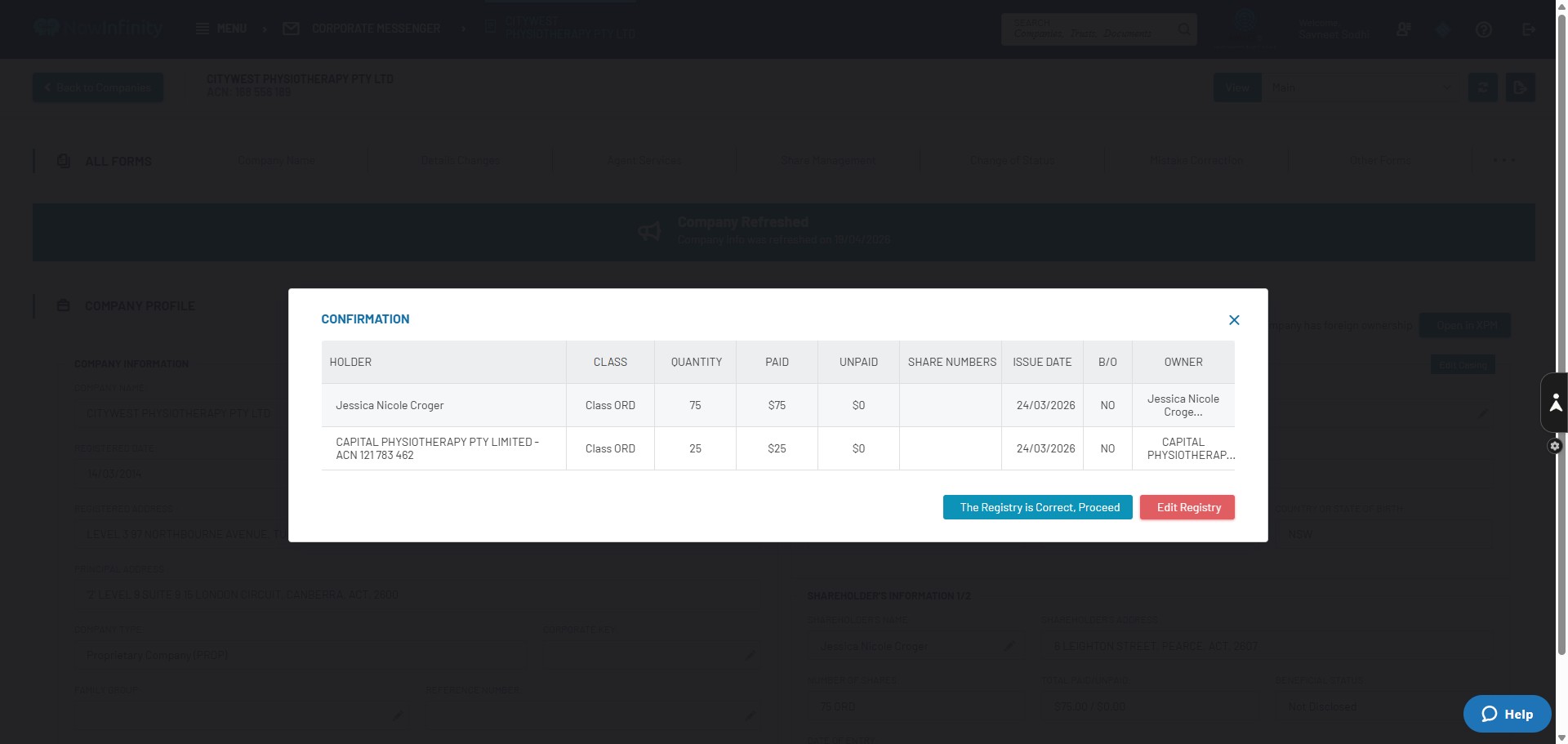
Nowinfinity will display the current share registry. If there is an error in reconciliation, raise this with Harneet. Otherwise, click on "The Registry is Correct, Proceed"
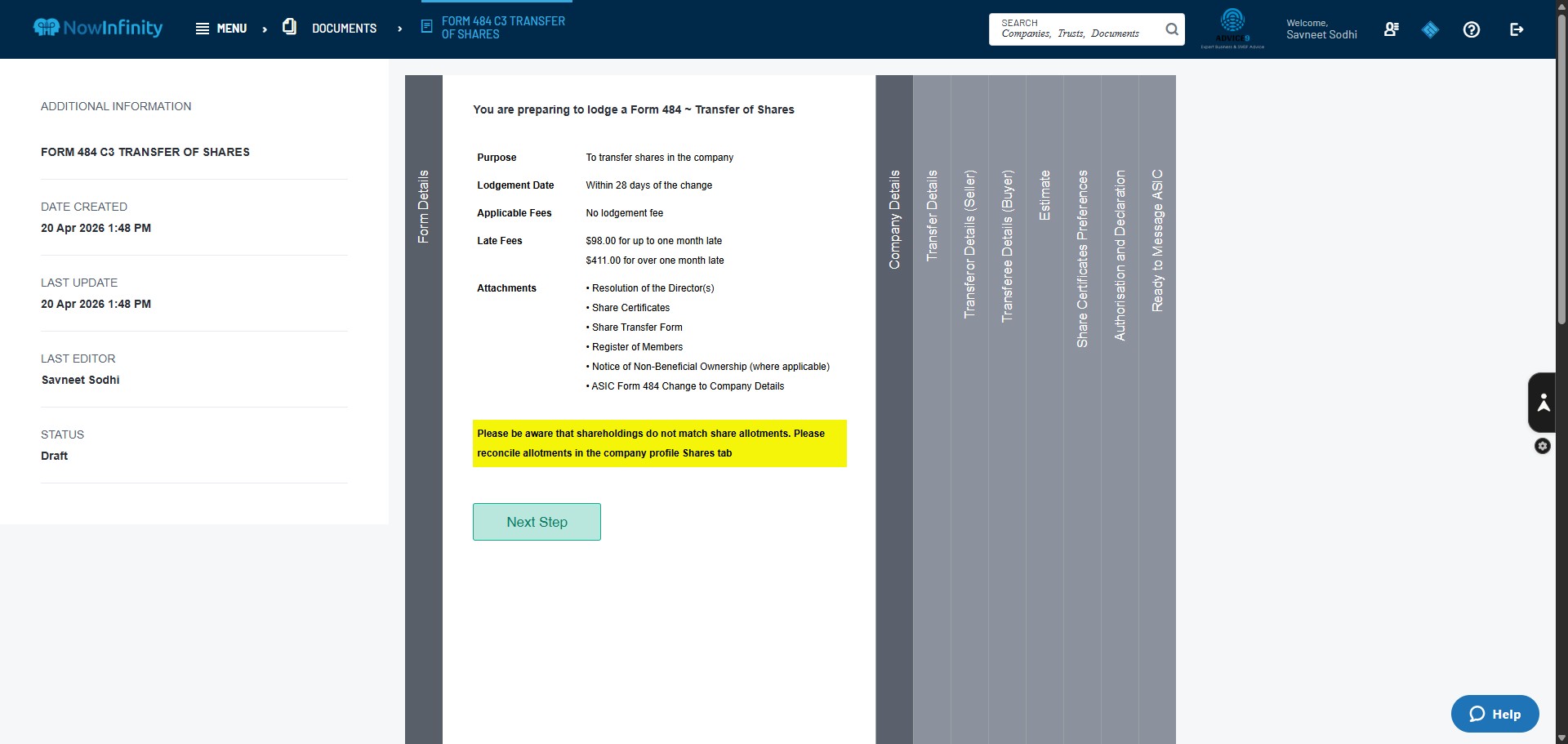
Click on "Next Step"
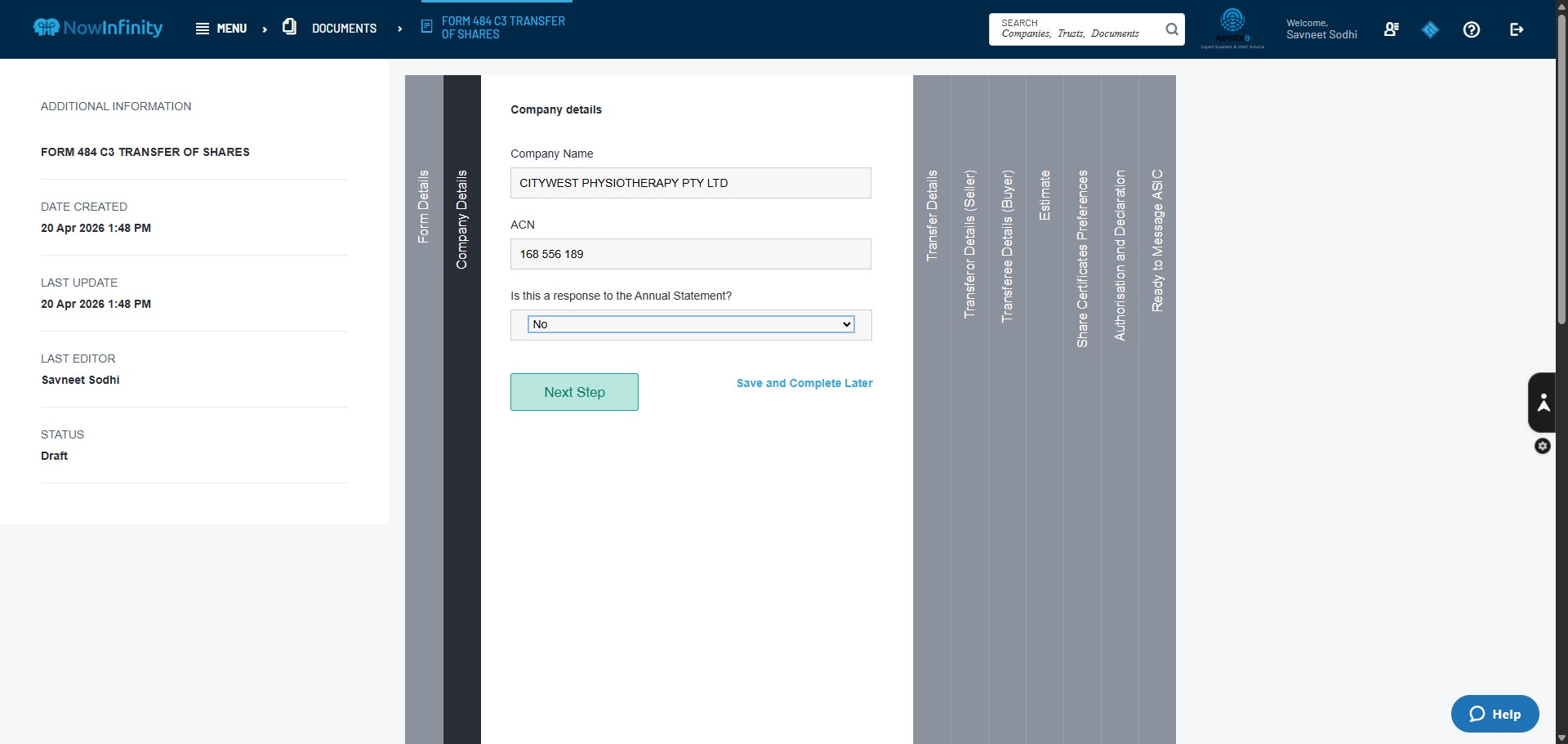
Unless specified, the Answer to the question "Is this a response to the Annual Statement? will be "No." Click on "Next Step"
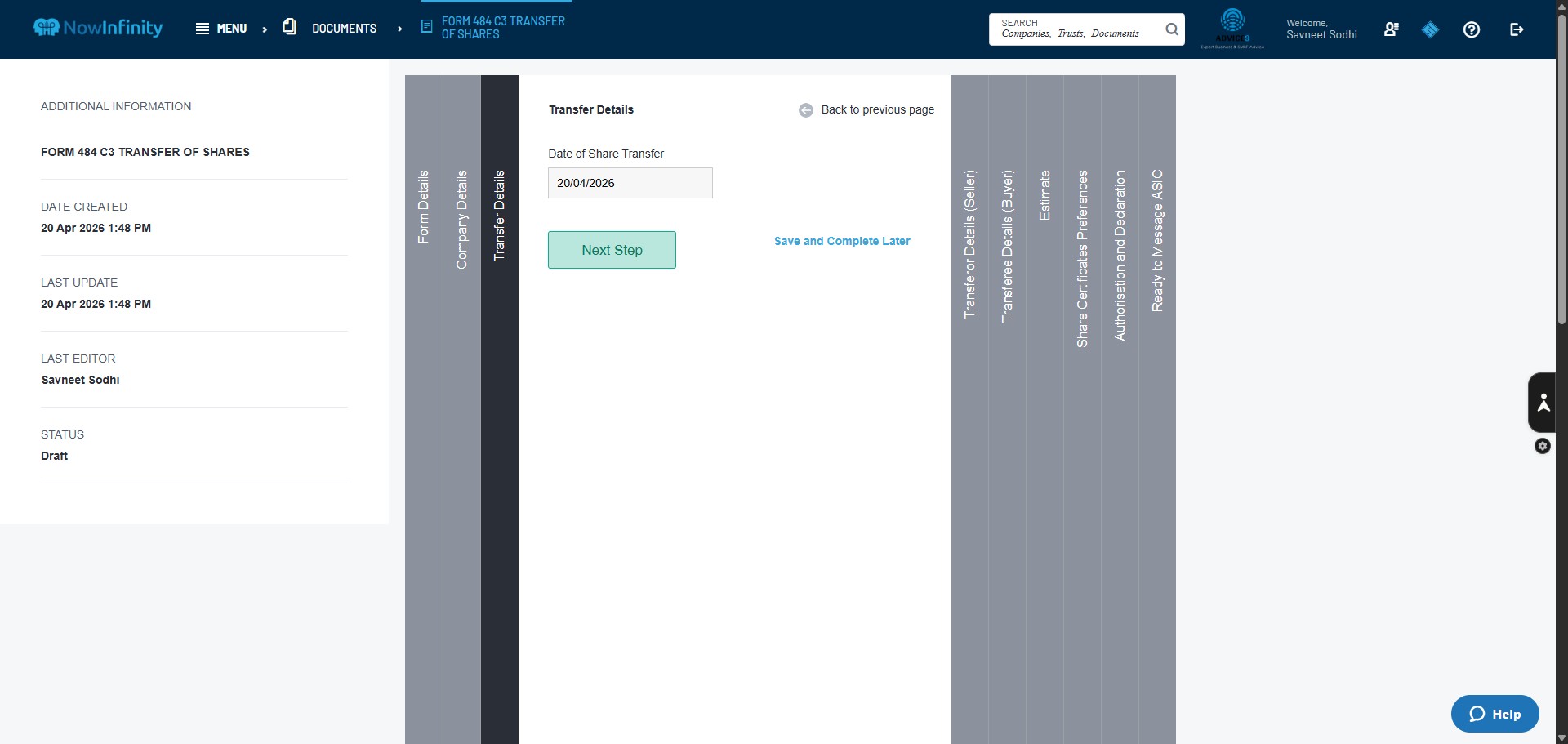
Ensure the Date of Transfer is entered as advised. Click on "Next Step"
Click here to select the Entity/person transferring the shares.
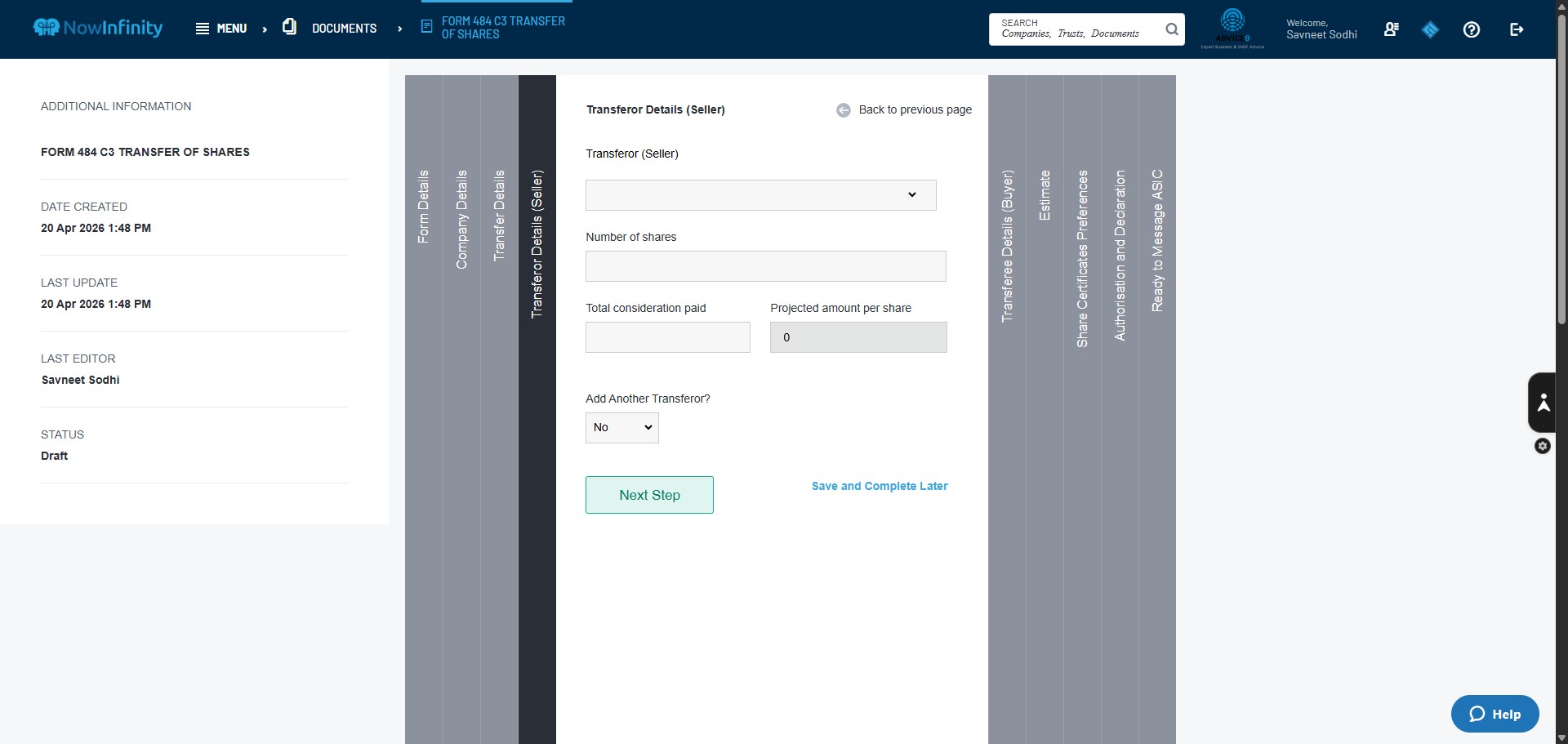
Click here to enter the number of shares being transferred.
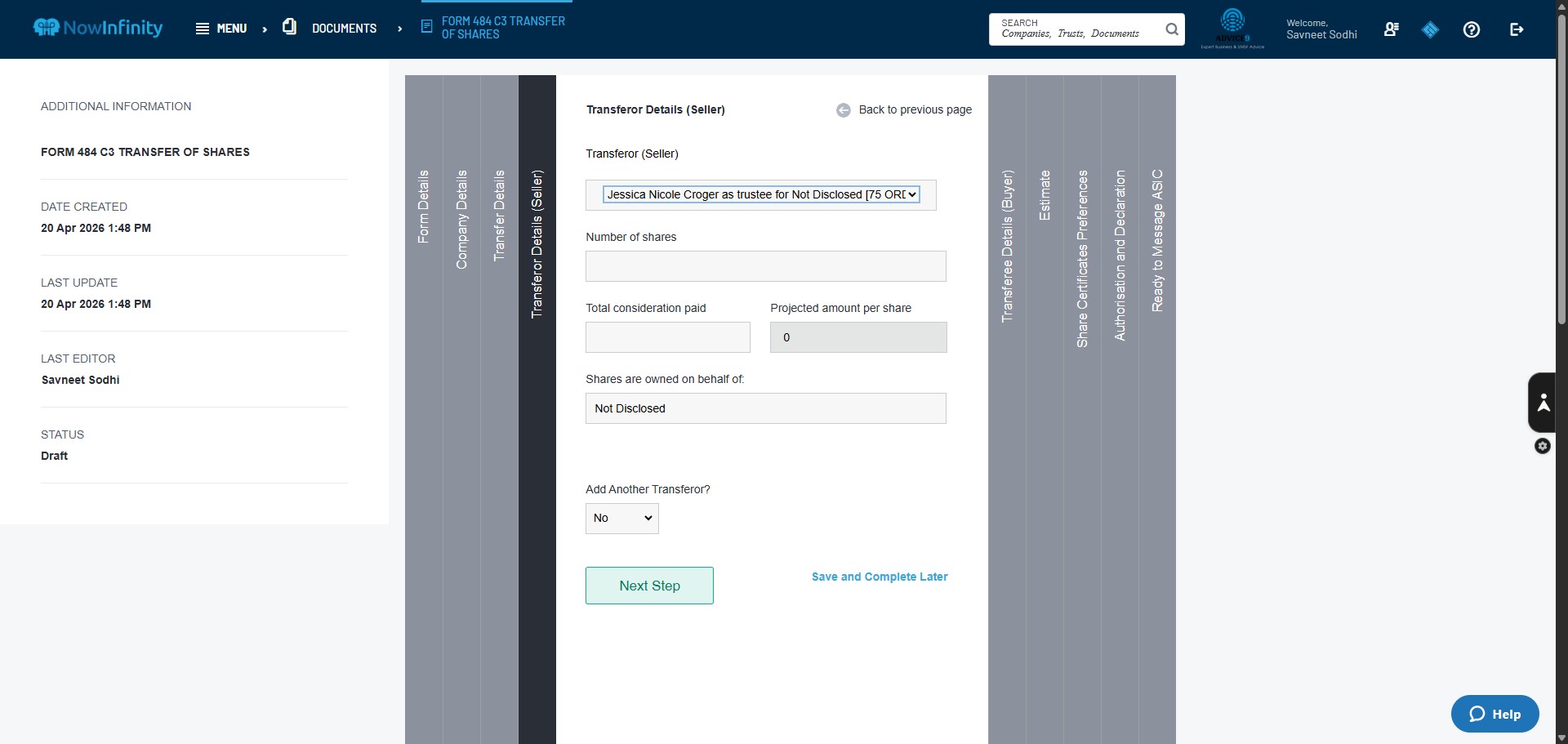
Click here to enter the value of consideration paid for the transfer.
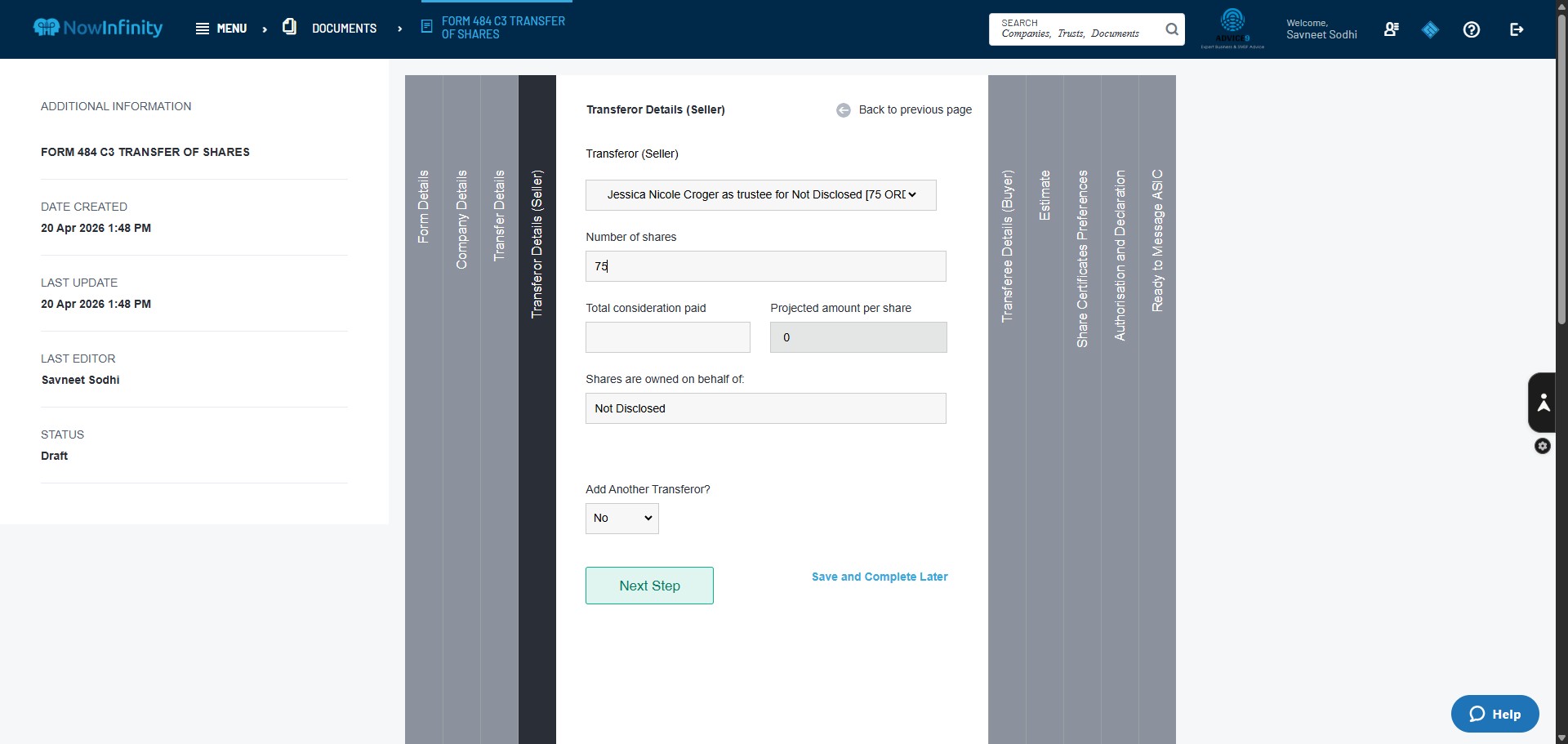
Click on "Next Step"
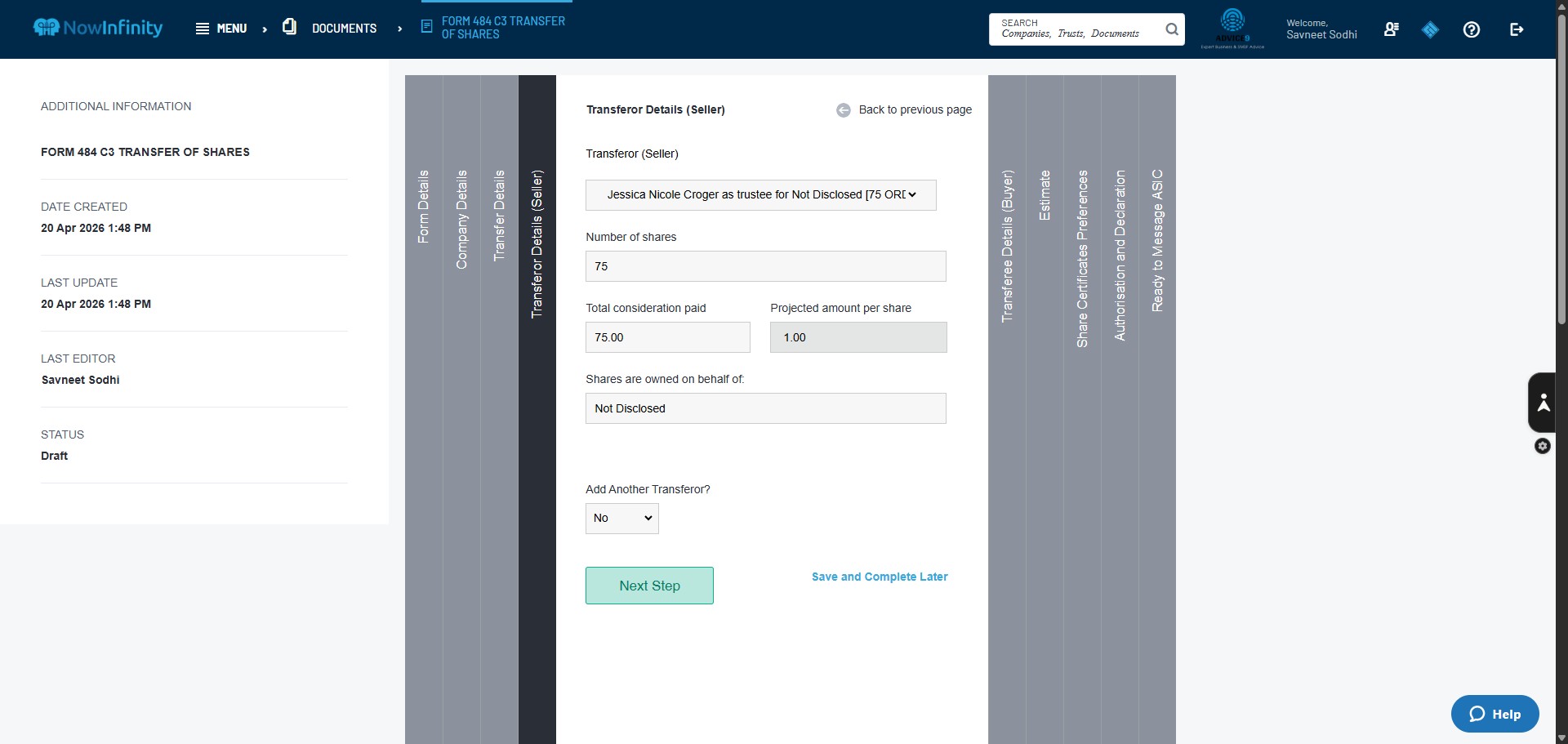
Click here to enter the Entity/Person to whom shares are being transferred.
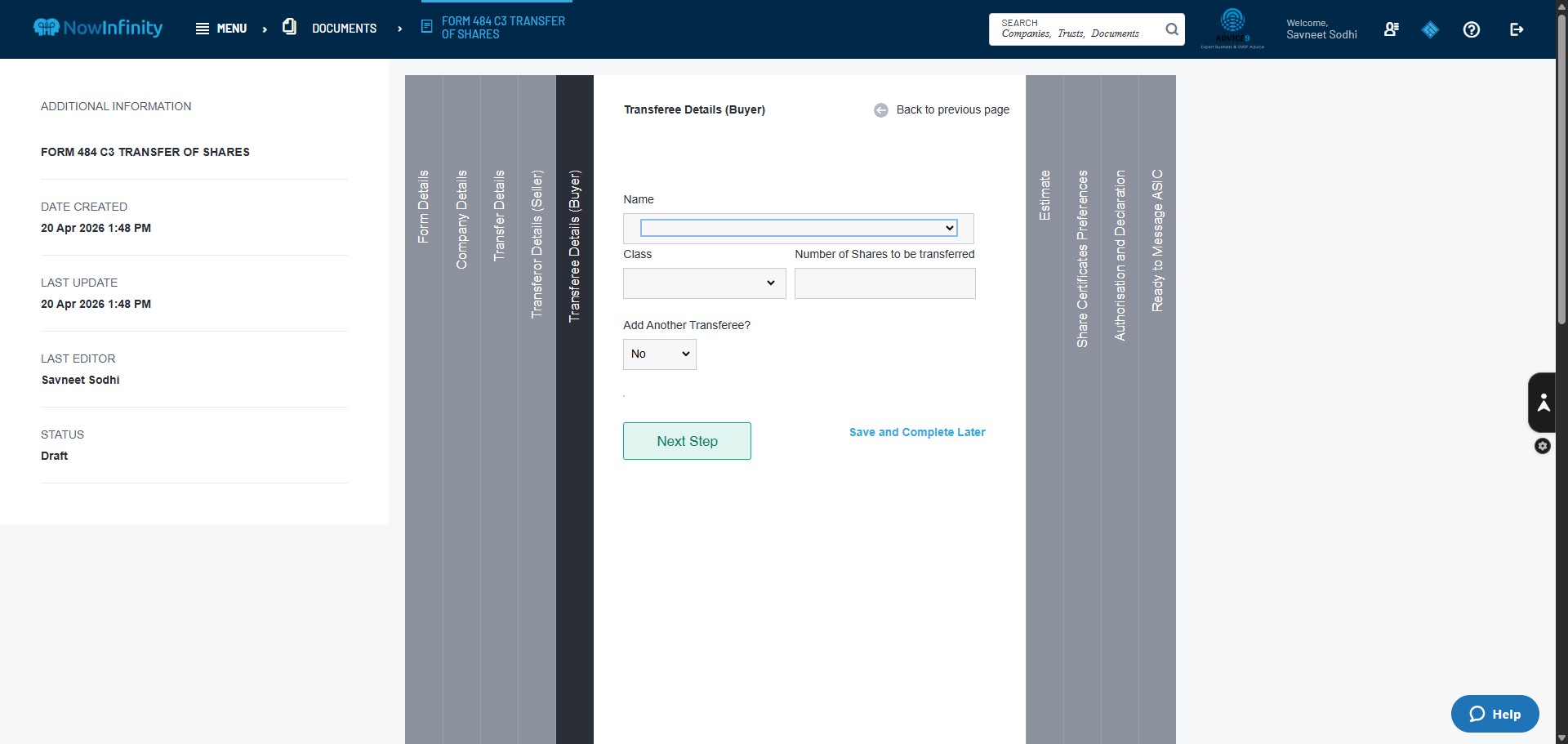
Click here to enter the class of shares being transferred. Unless specifically mentioned, the class of shares are always "Ordinary Shares or OED"
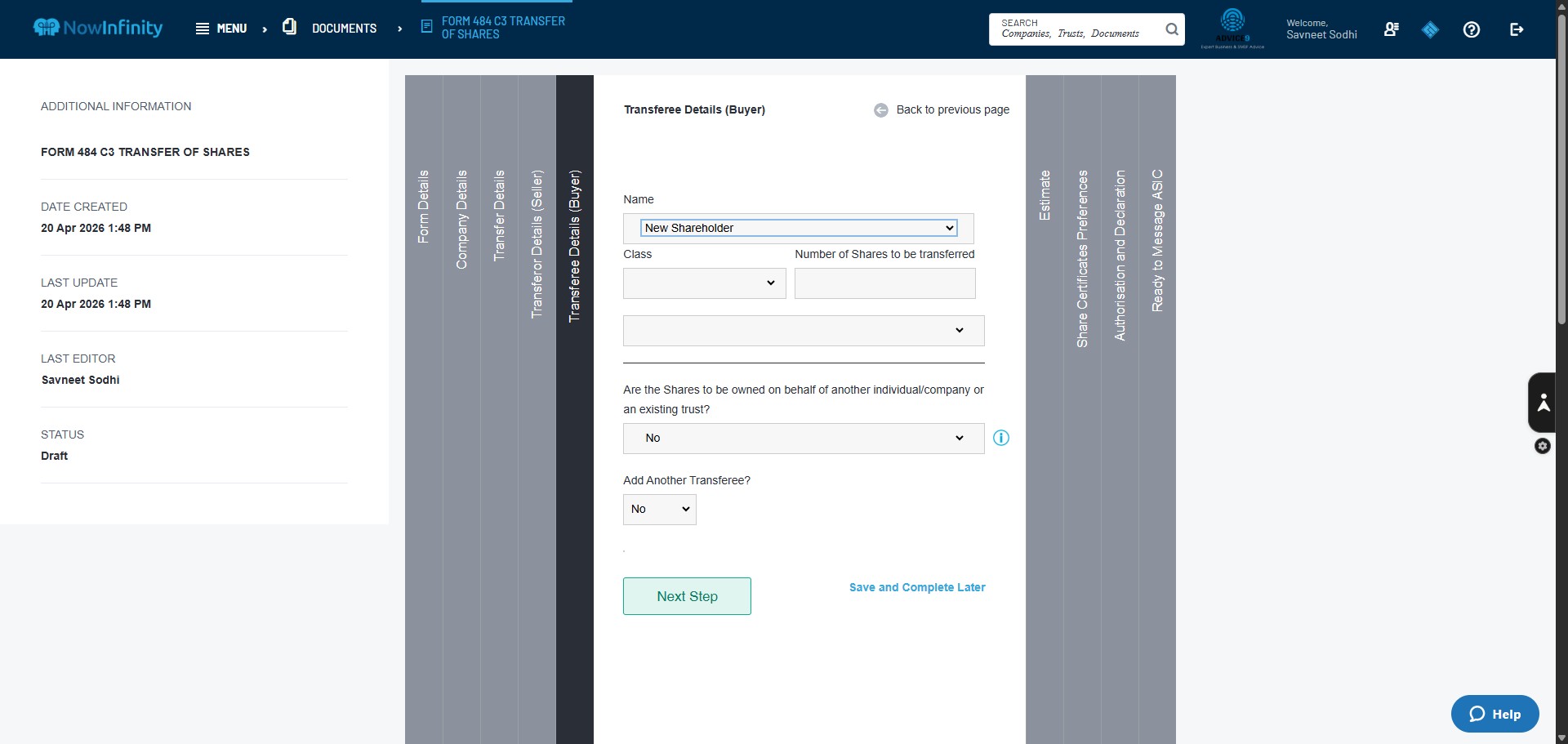
Click here to enter the number of shares being transferred.
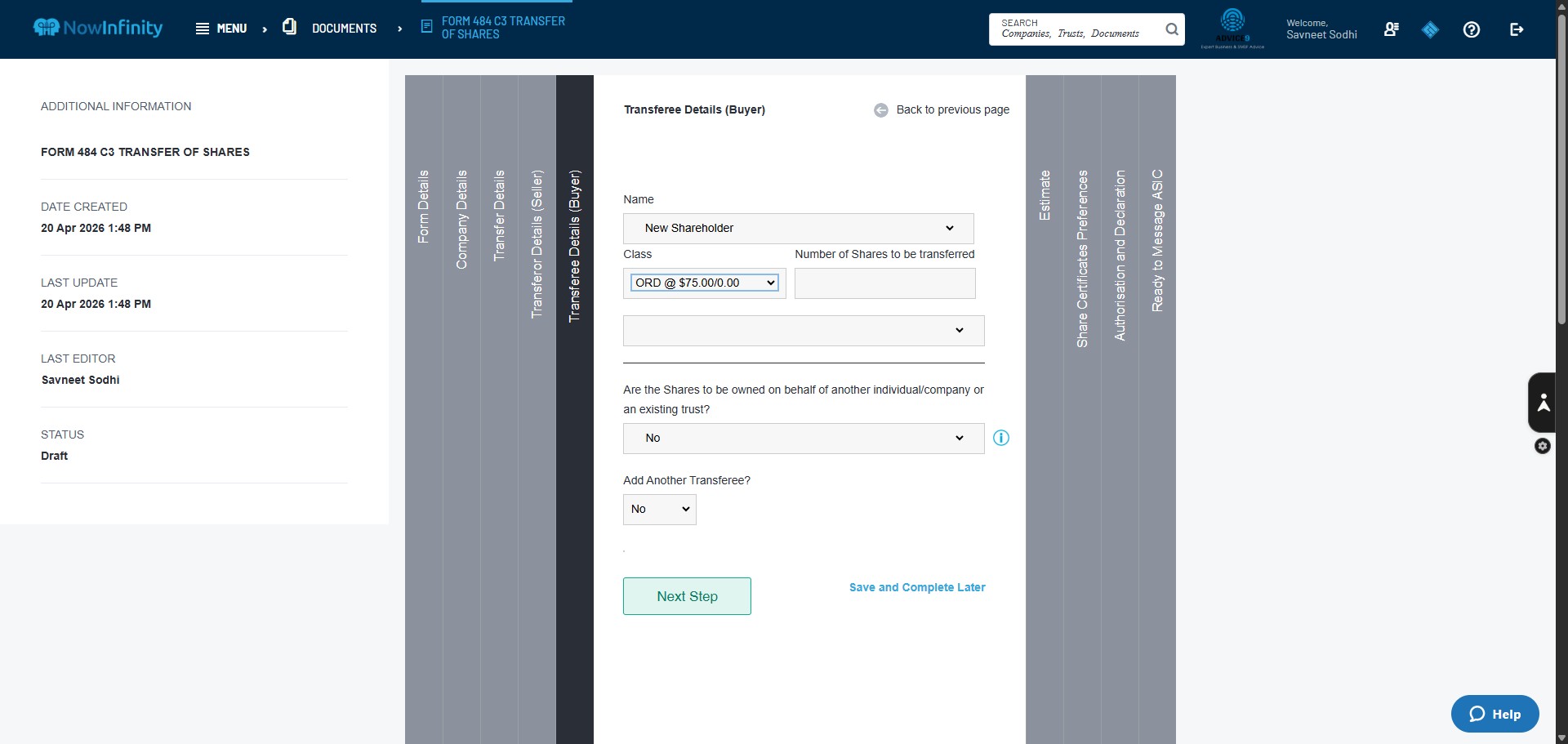
Click here to select, if the shareholder is a Corporate, Individual or Joint owner.
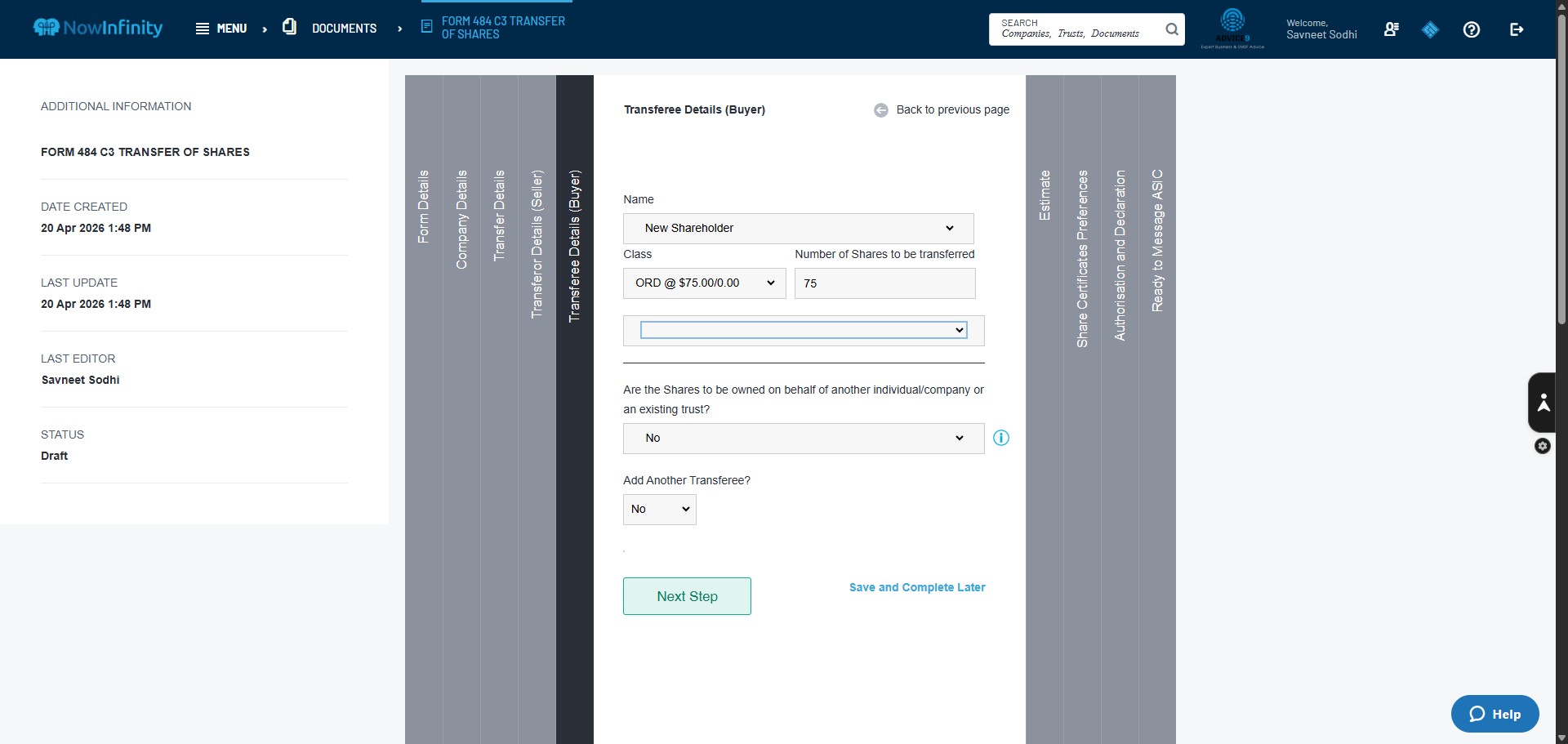
Click here to enter the ACN for the corporate shareholder.
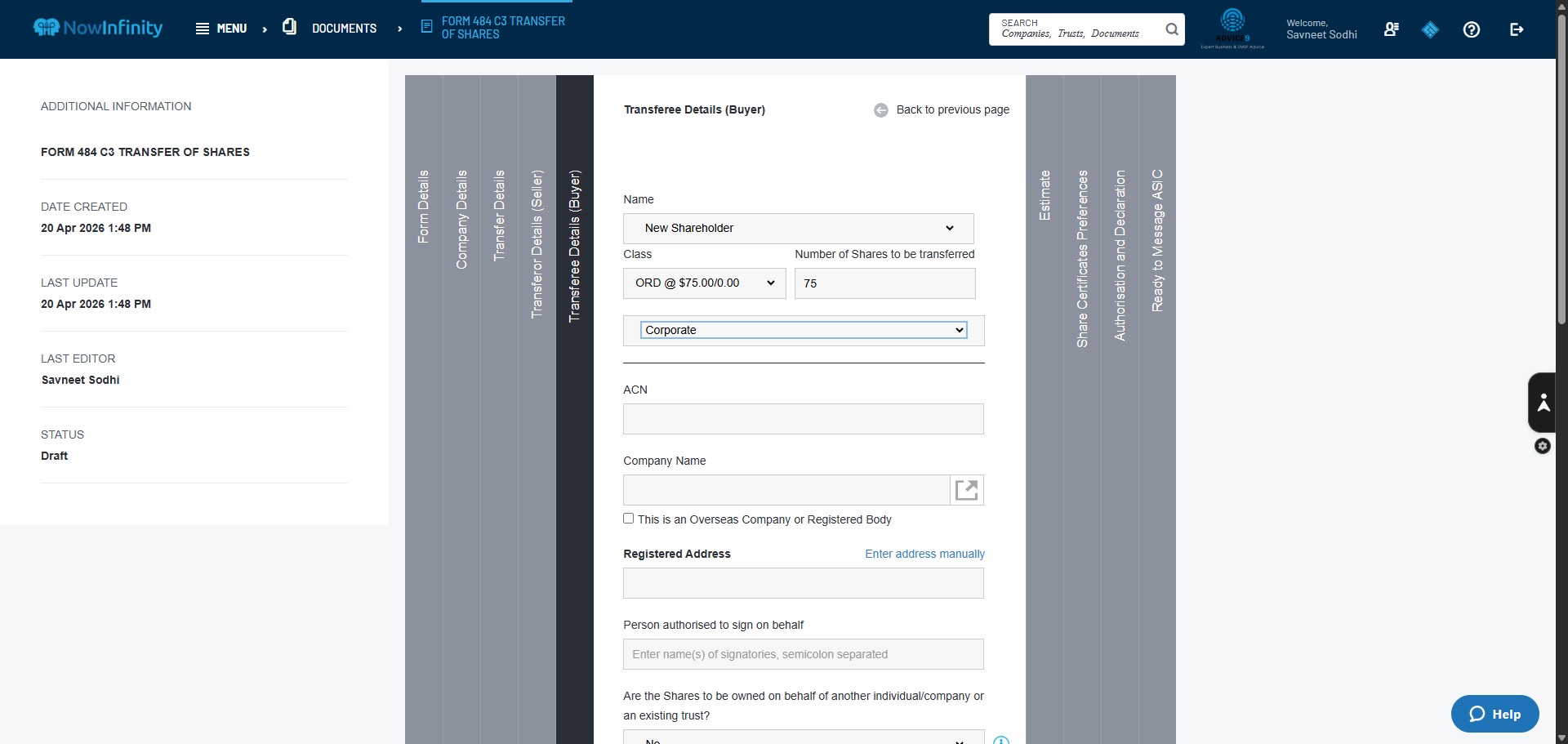
Click on "Enter address manually" and enter the registered address of the Corporate Entity. if not known, query the Manager
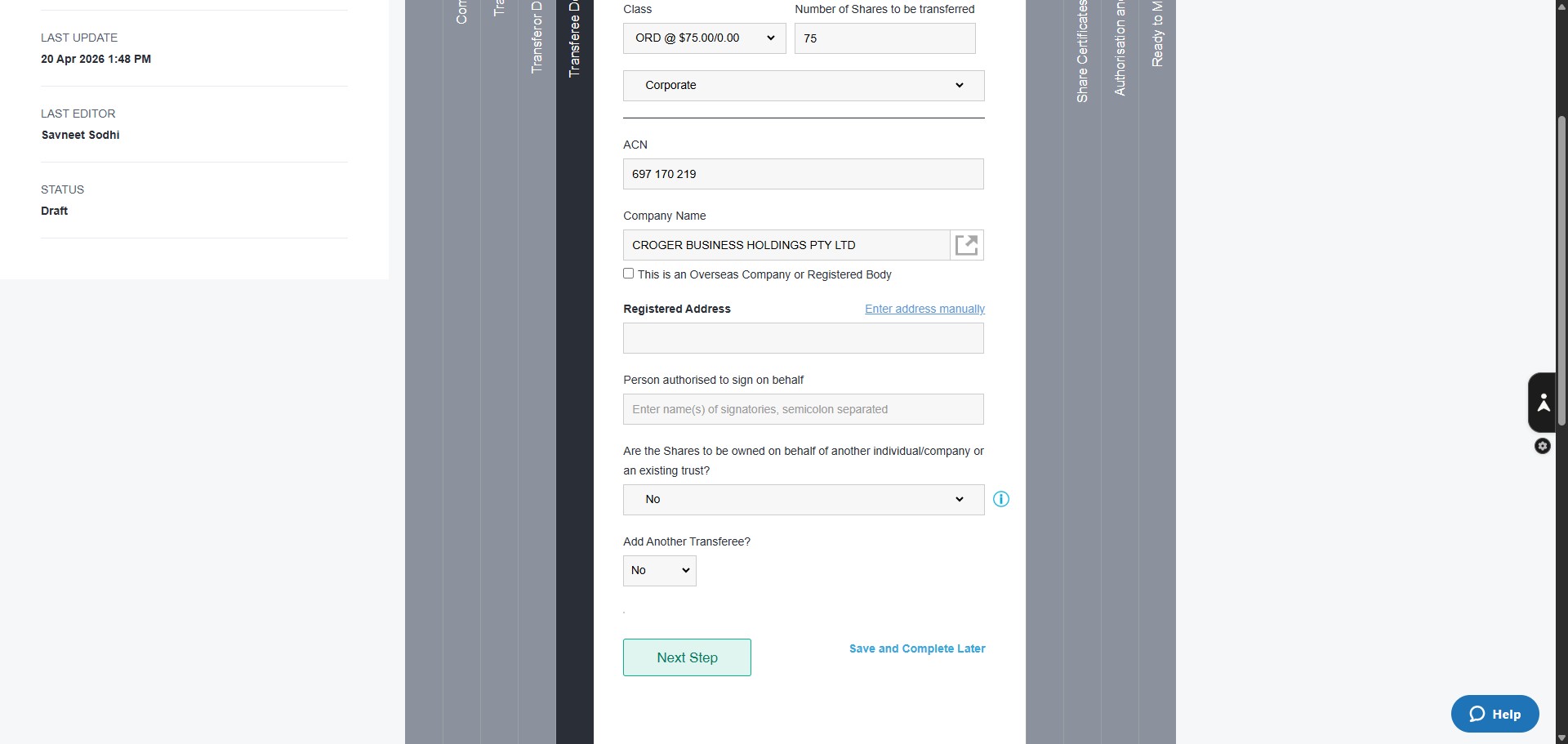
Check the current registered address of the Corporate Entity by opening a second Nowinfitnity window. If the address is the Advice 9 office address, click Enter address manually and enter the Advice 9 registered address as Unit G10, 48 GUNGAHLIN PLACE, GUNGAHLIN ACT 2912. When the entity's registered address differs from the Advice 9 office address, enter that address here.
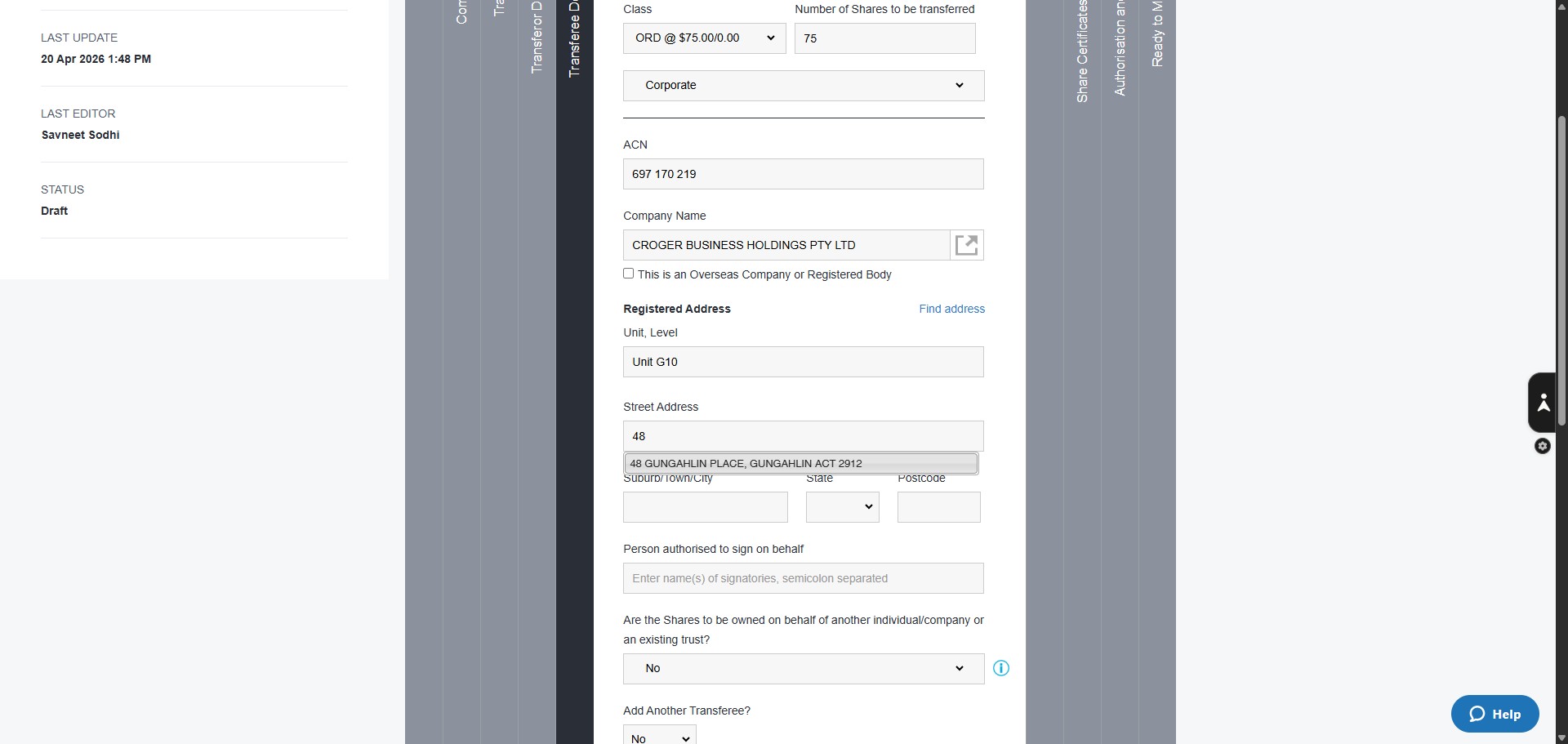
Click here to enter the Director who will sign off on this form. Check with the manager if you are not sure.
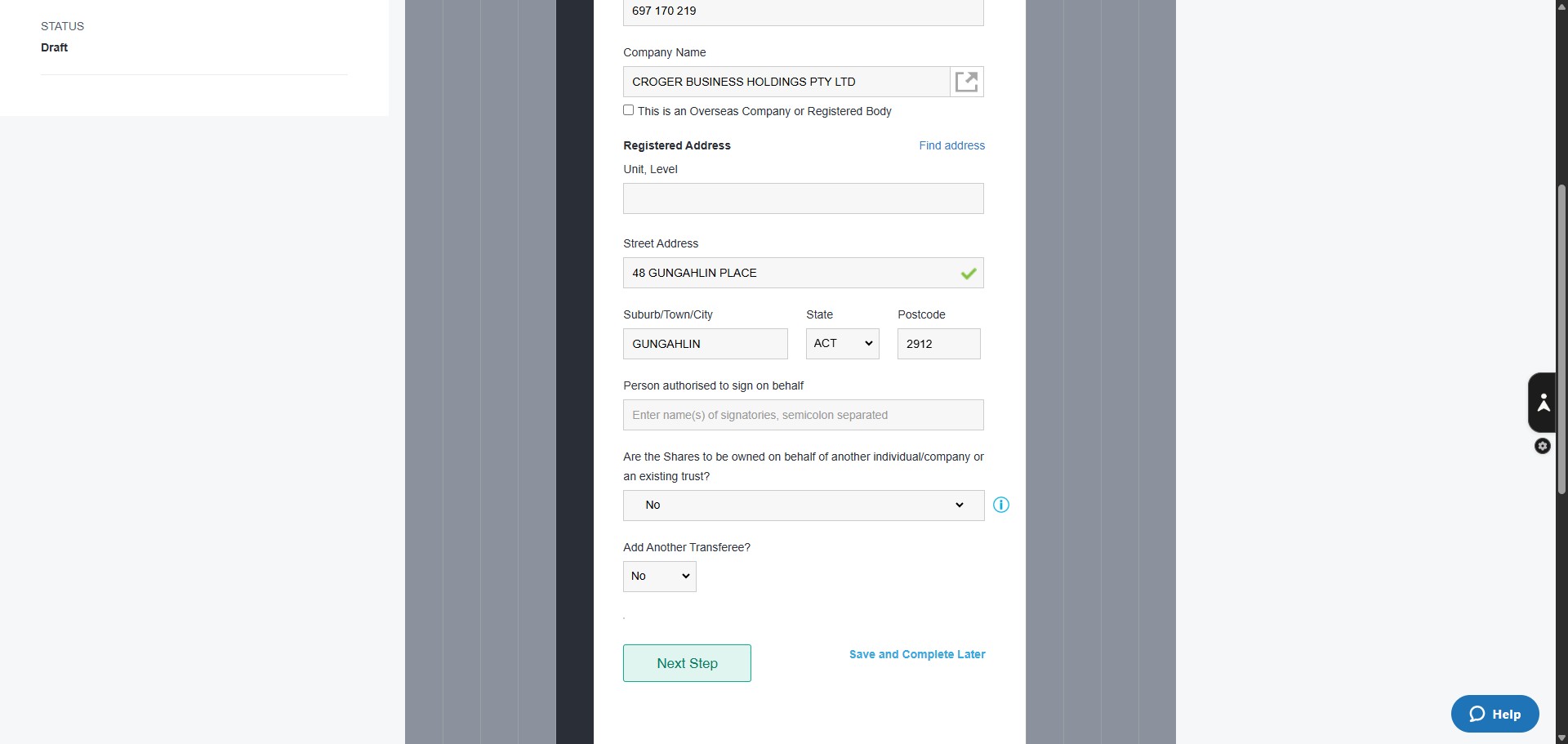
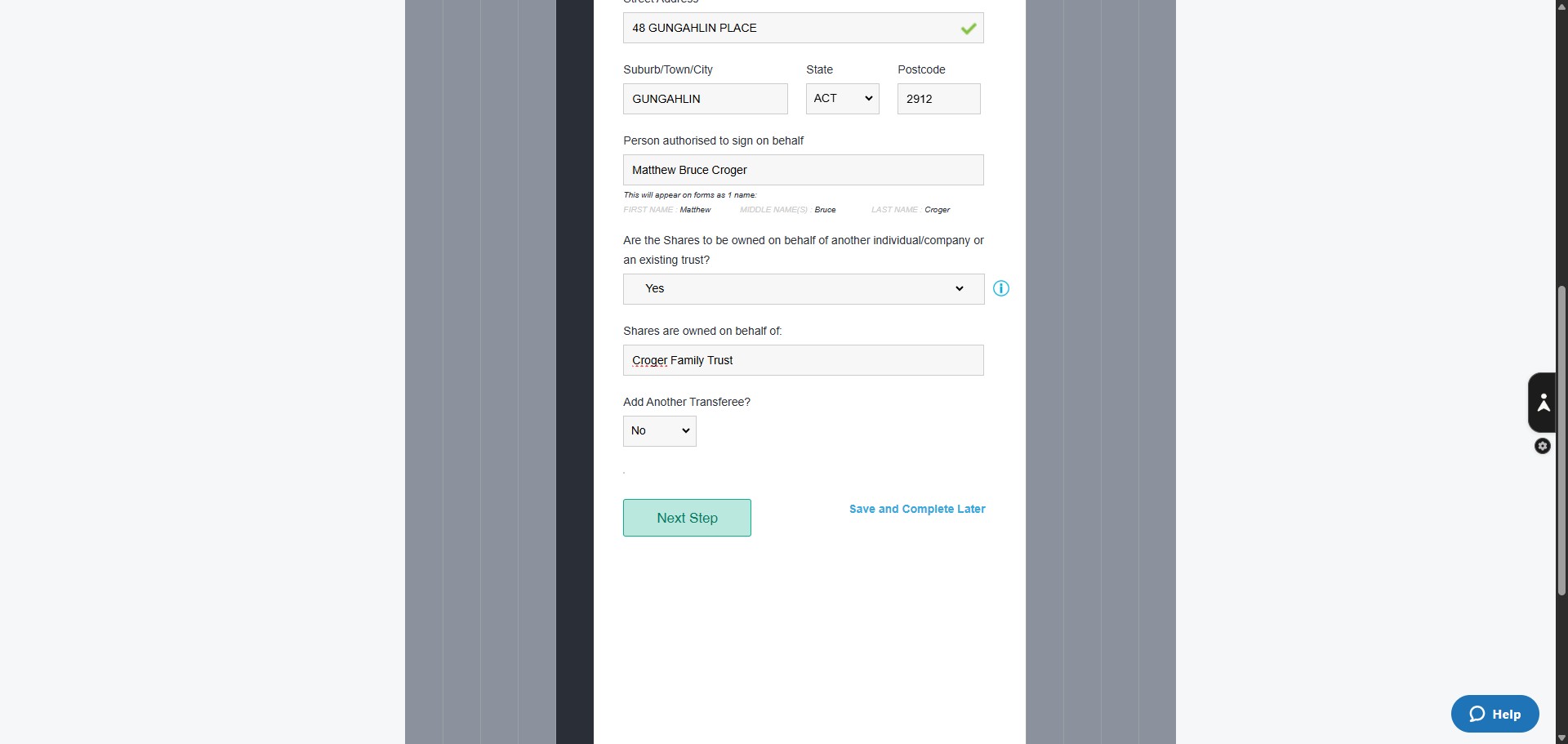
Click here to select whether the Shares are owned on Behalf of a trust or not. In this example, the entity is a Trustee company that will be owning shares on behalf of a trust. The answer is "Yes"
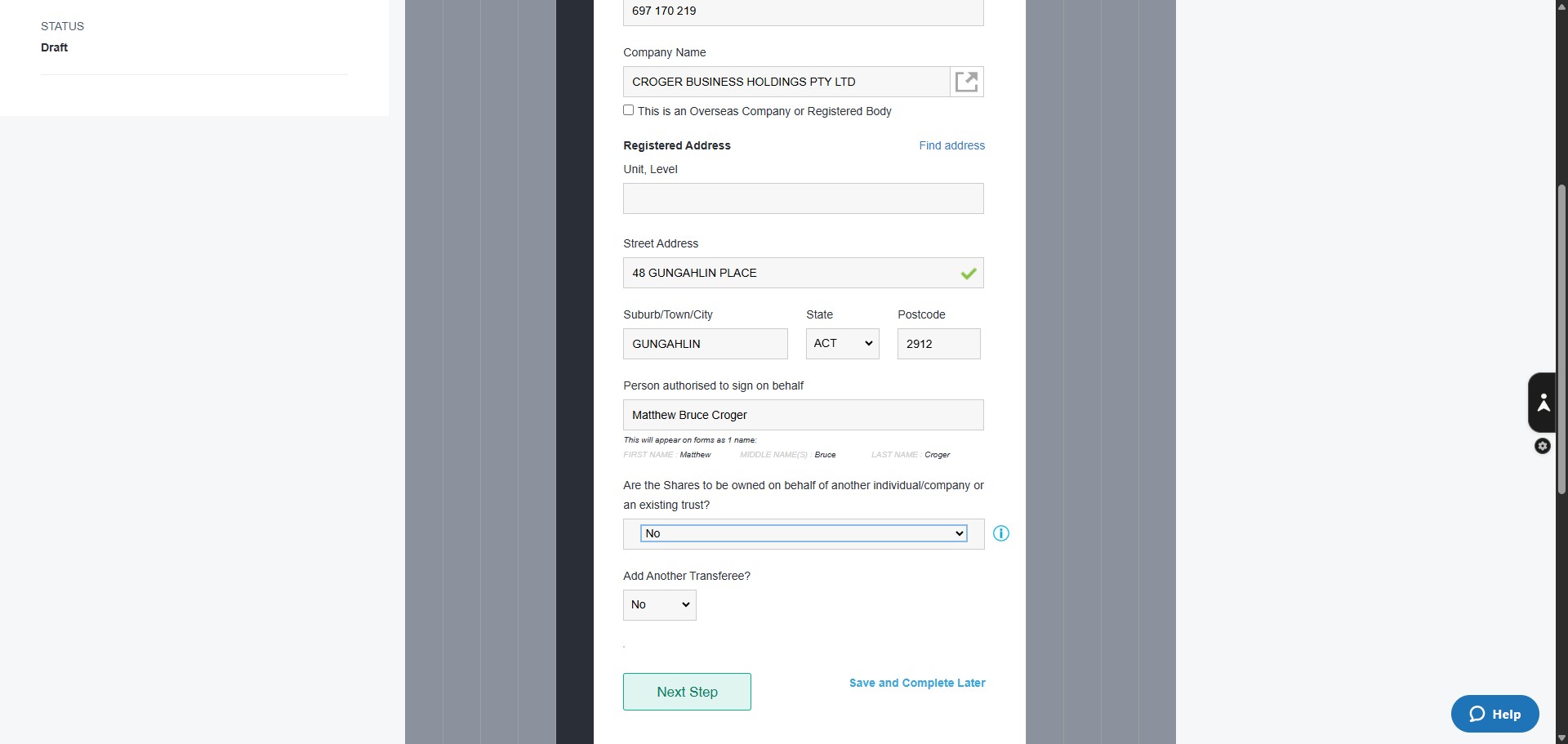
Click here to enter the Trust Name on whose behalf the shares are owned.
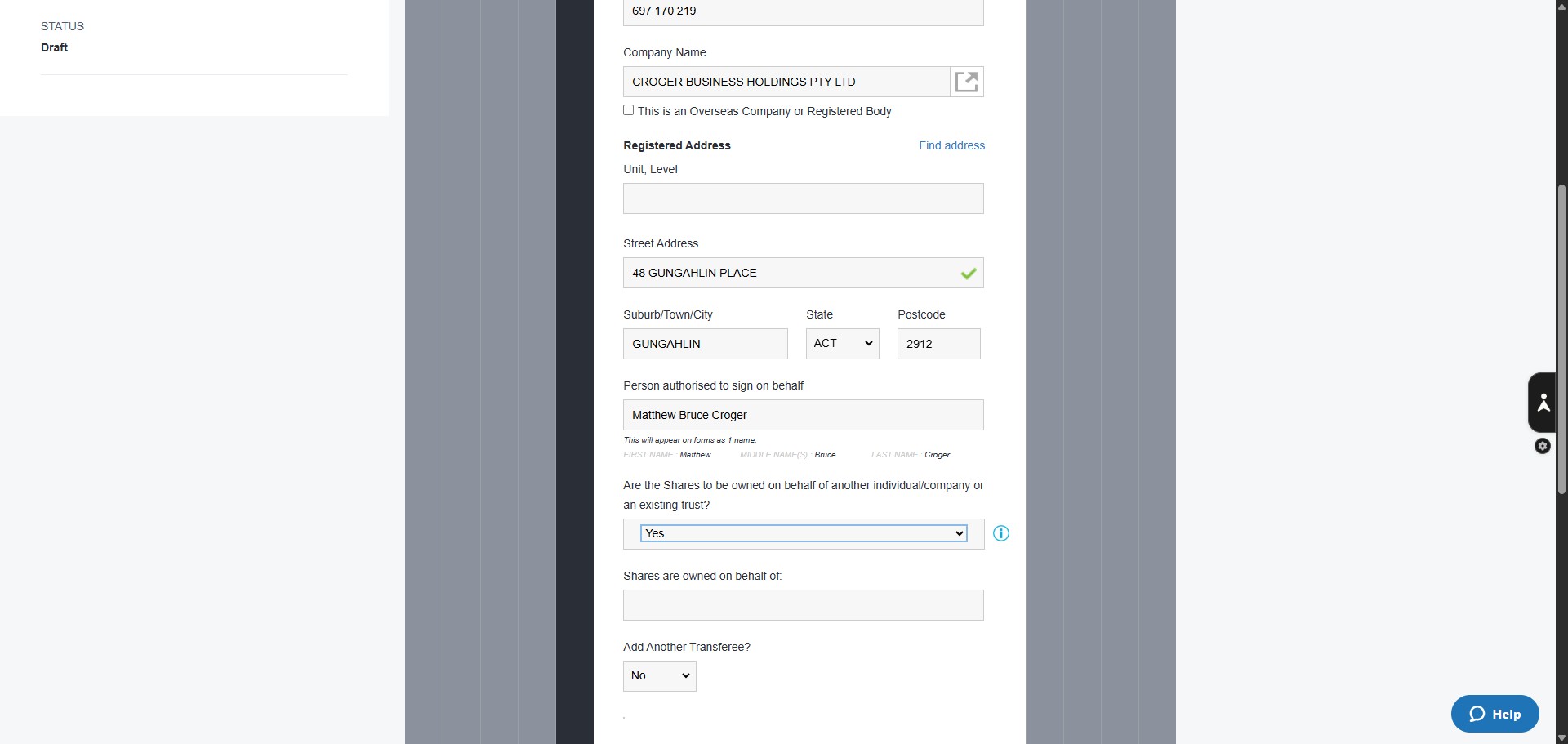
Click on "Next Step"
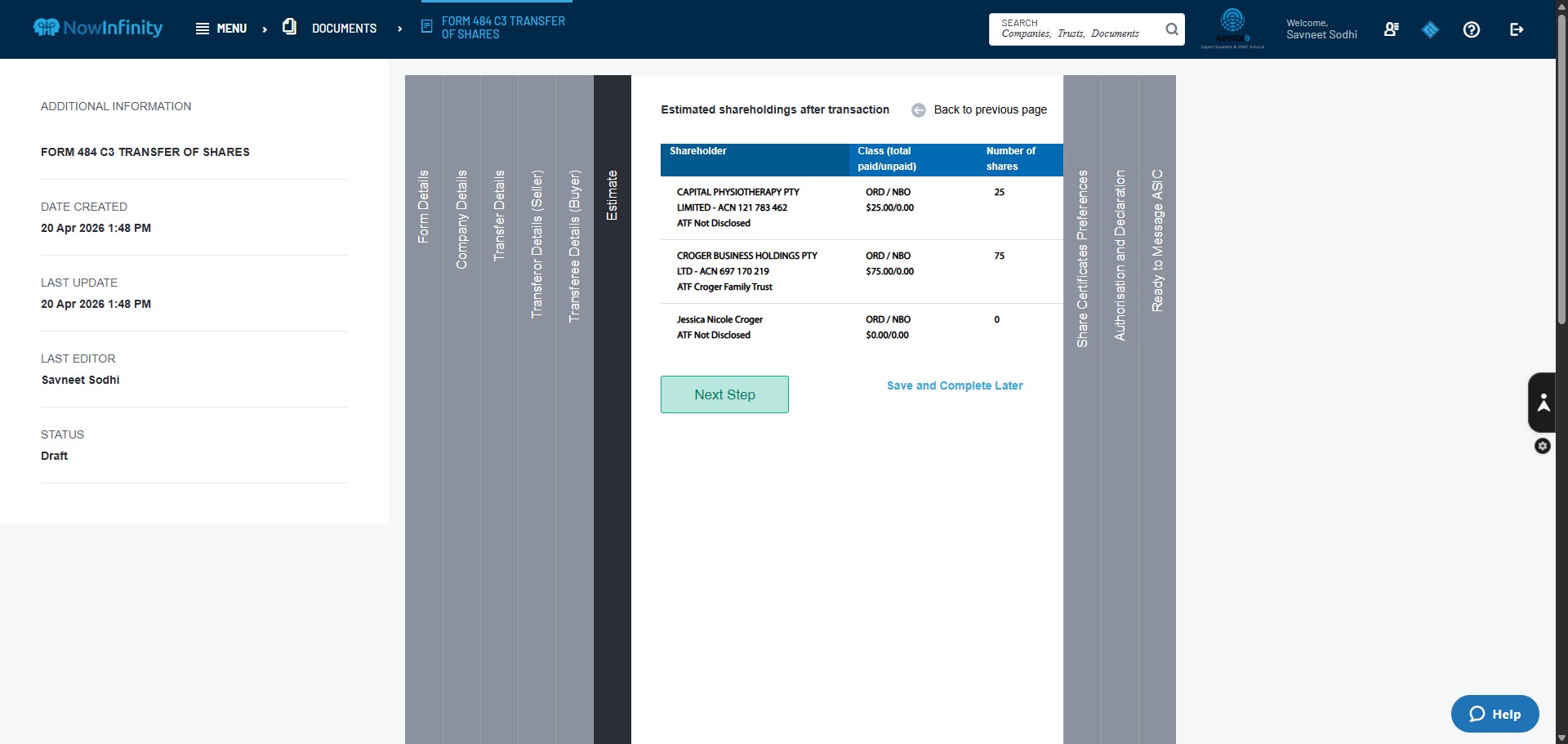
Click on "Next Step" to check what the share registry will look like after the share transfer form is submitted to ASIC.
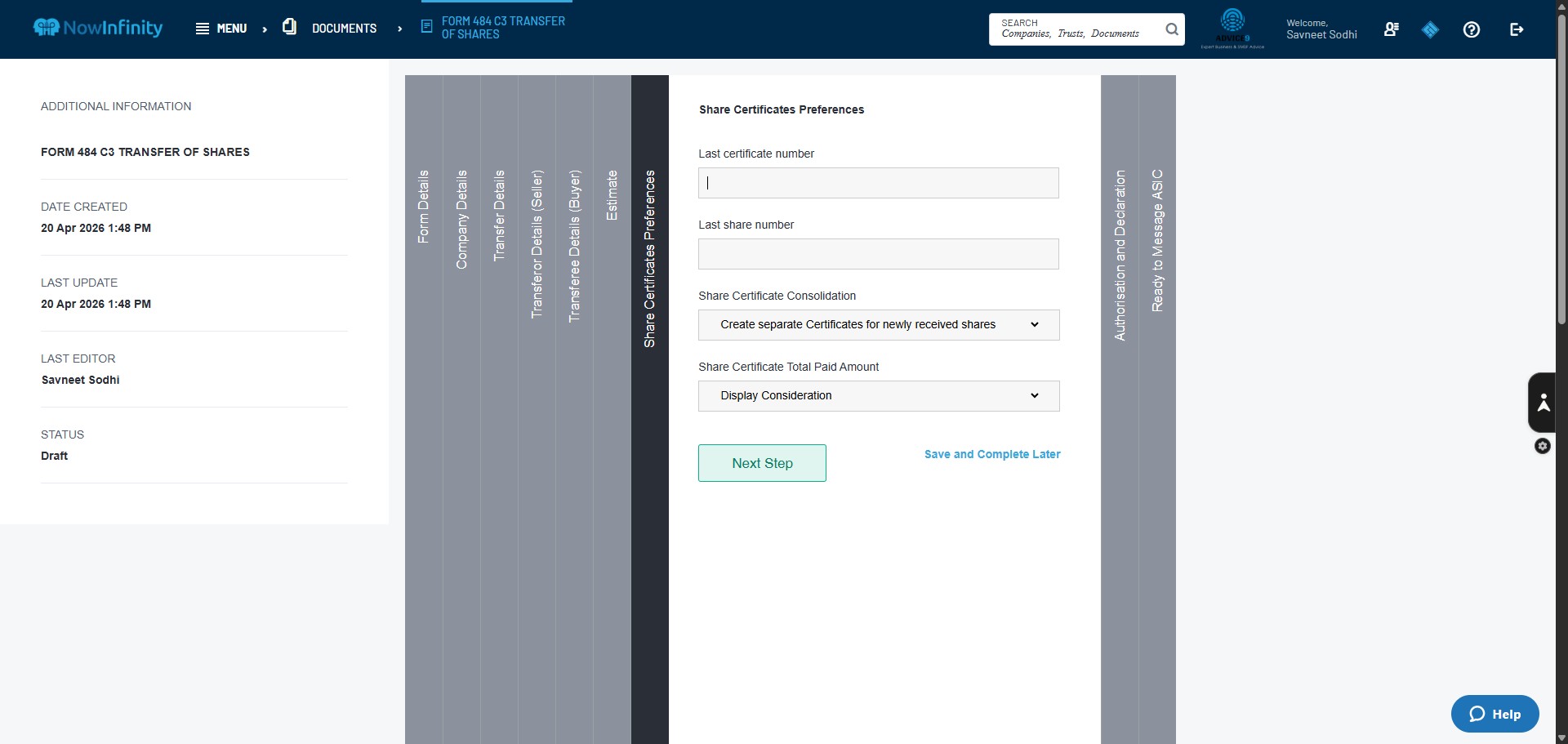
Click here to enter the Last Share Certificate Number issued for this entity. If not known, check the entity's permanent documents in Dropbox; if the information is still missing, check with the Manager. Also, enter the Last Share Number. This is generally the last number of total shares issued. So if the company has 120 shares, the last share number will be 120
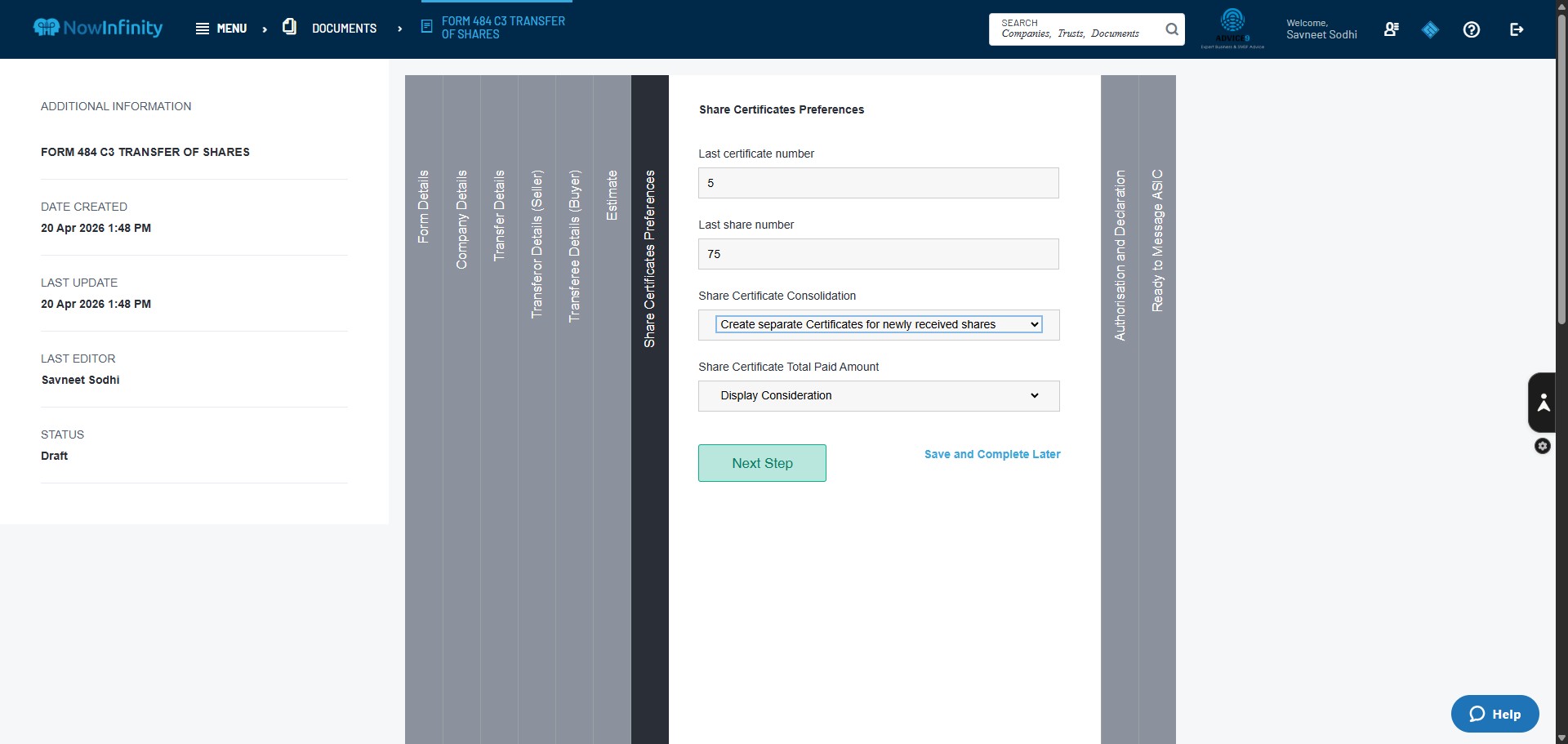
Click on Share Certificate Consolidation and select "Create Separate Certificates for Newly Received Shares: then click "Next Step"
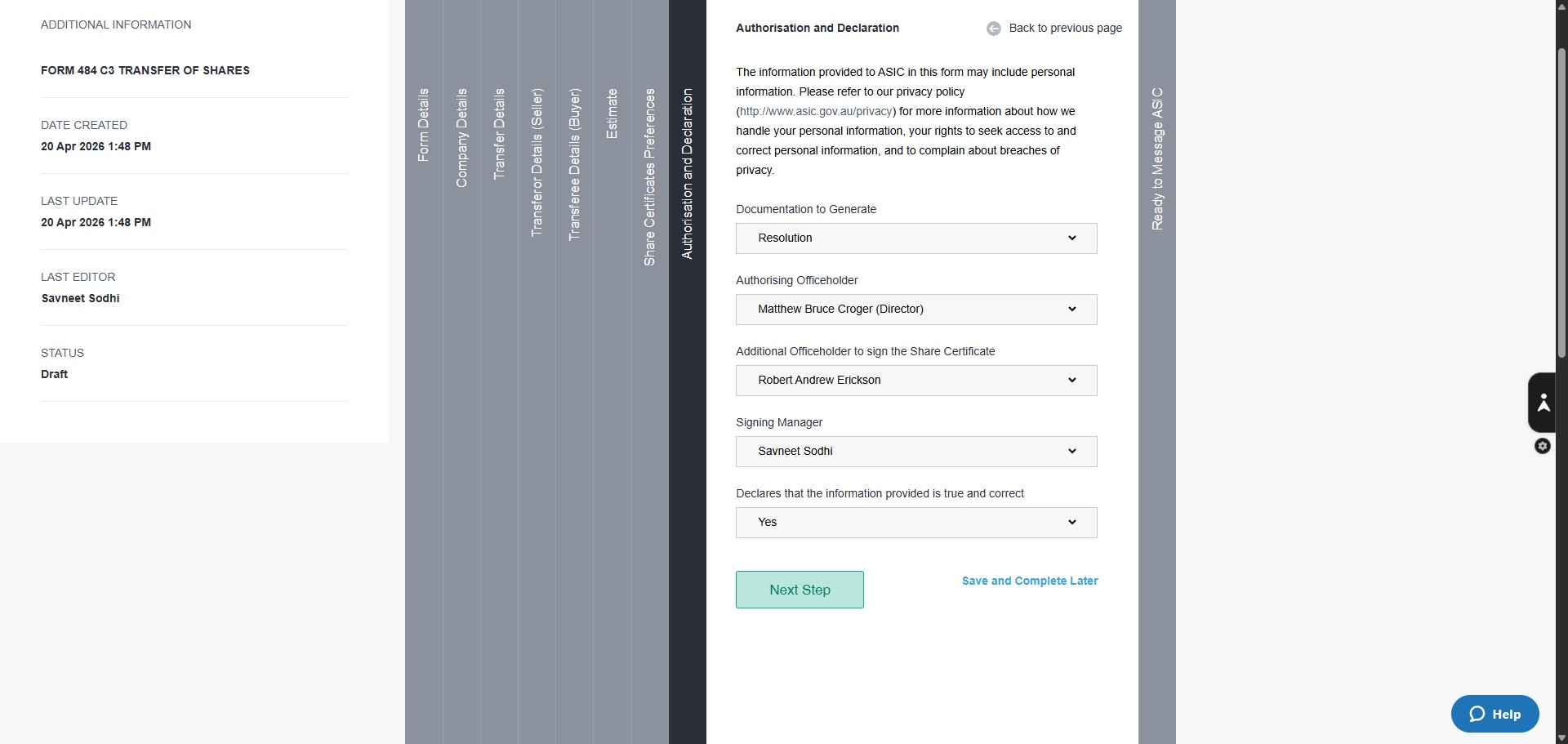
Click here to generate Documents as resolutions. Sometimes, the Managers may want the document generated as Minutes; unless specified, select Resolution.
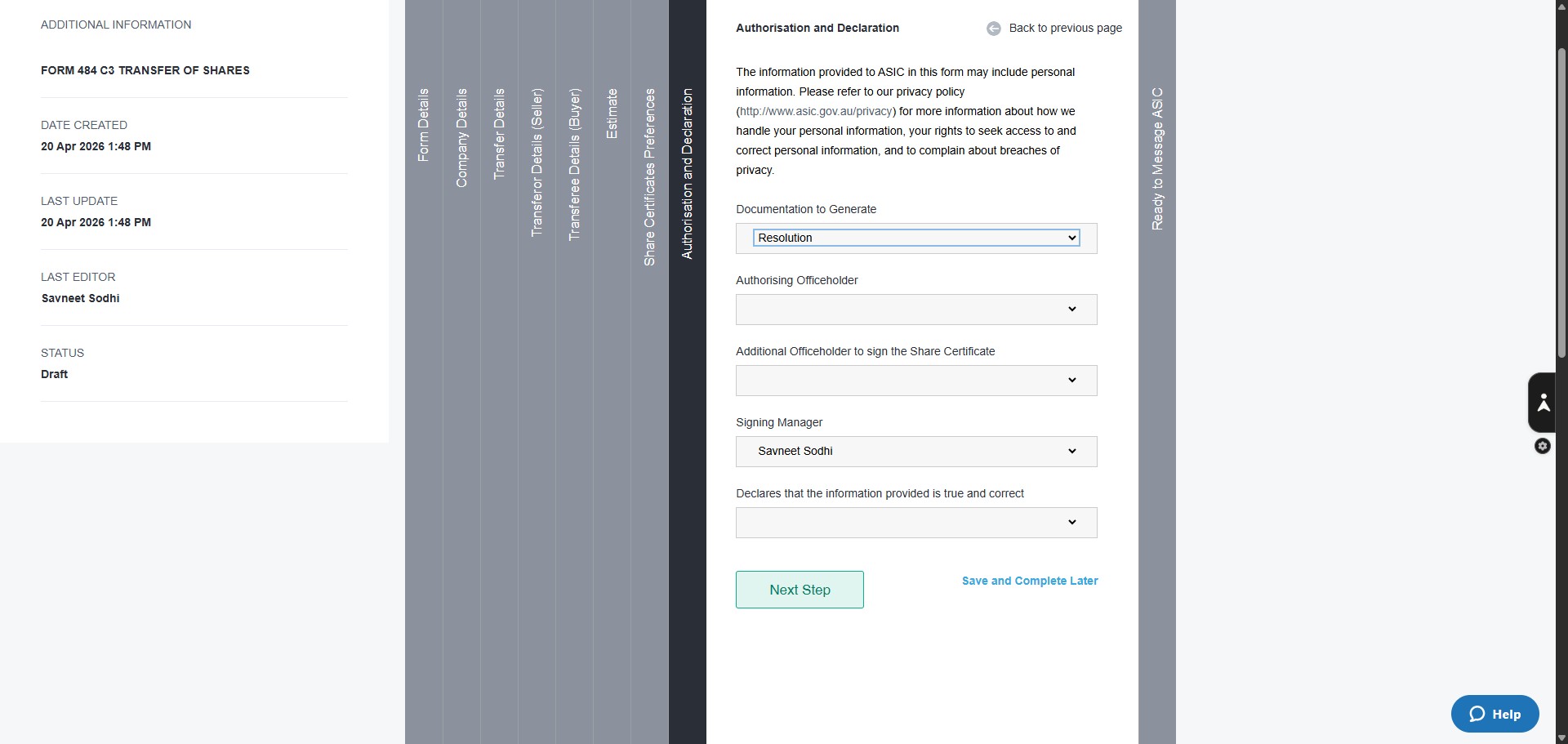
Click here to select the Director signing on behalf of the company.
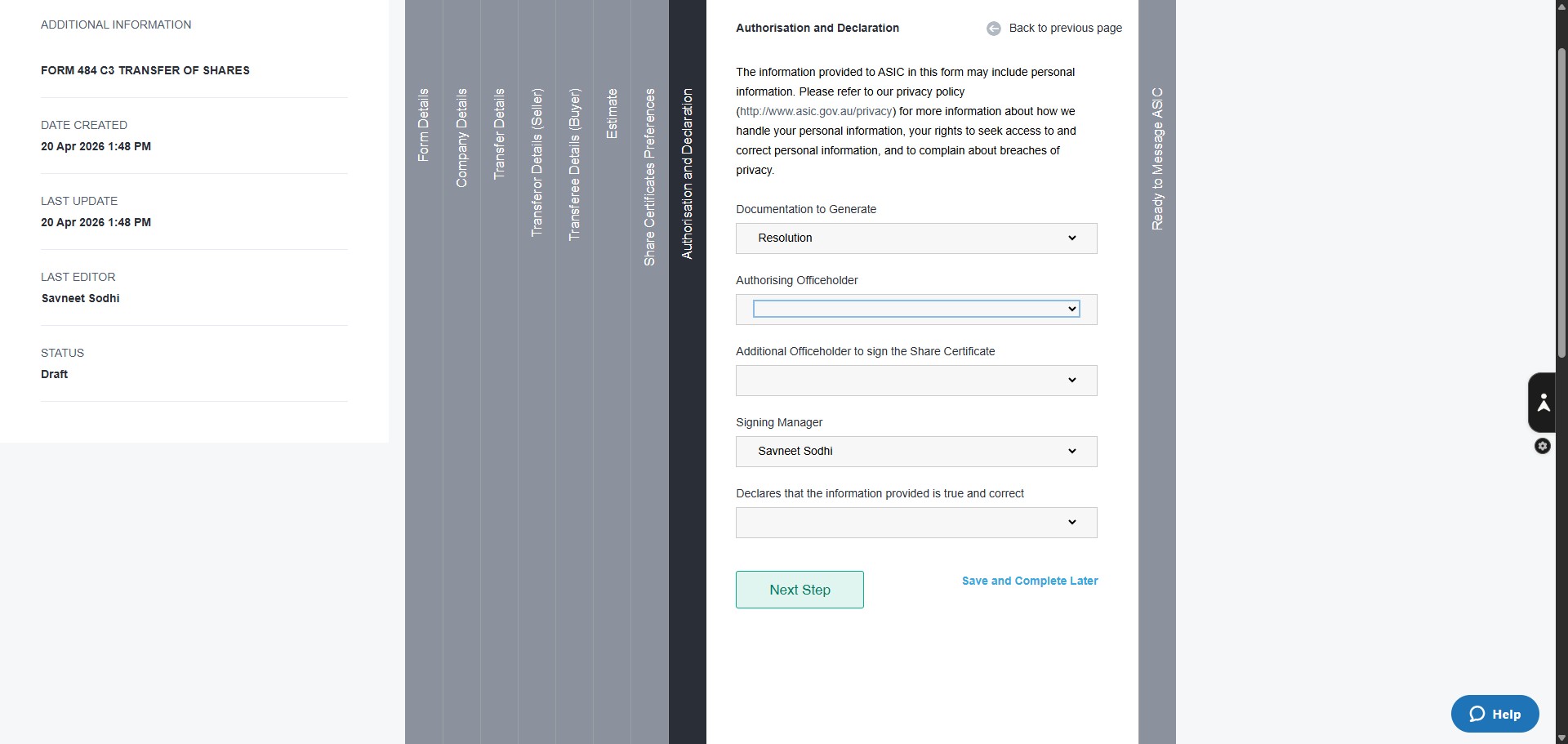
Click here
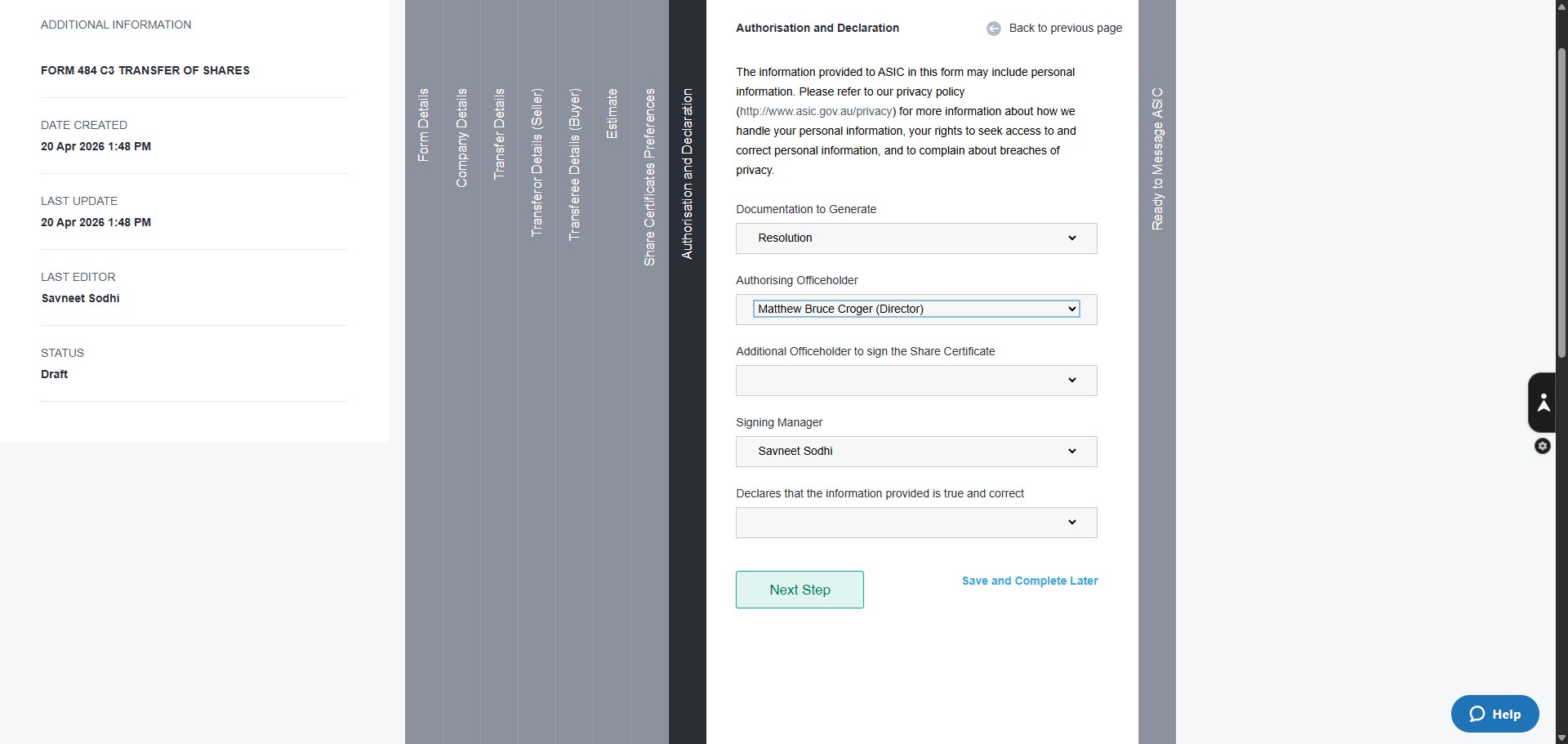
Click here to select the Signing Manager; this will be mostly Savneet.
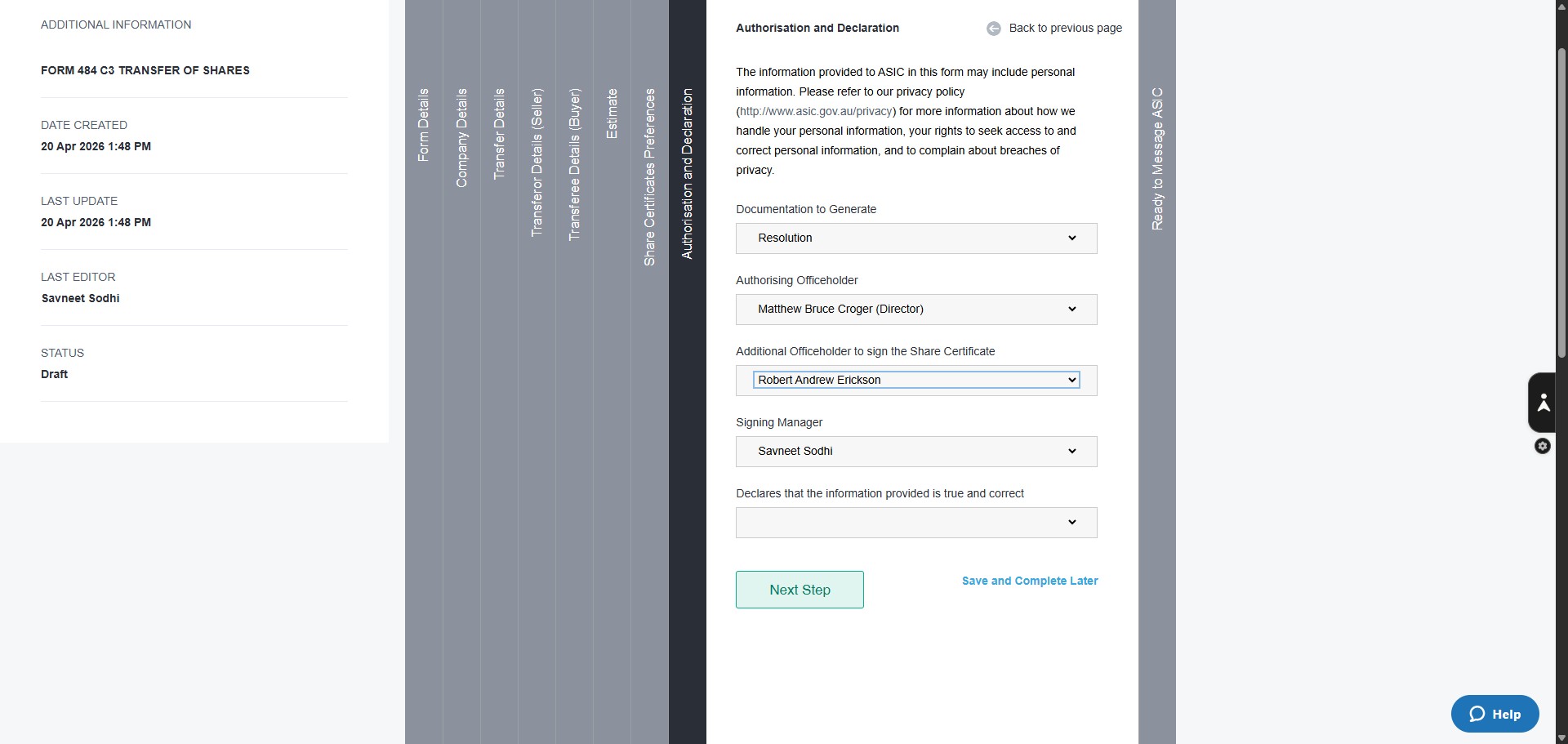
Click on "Next Step"
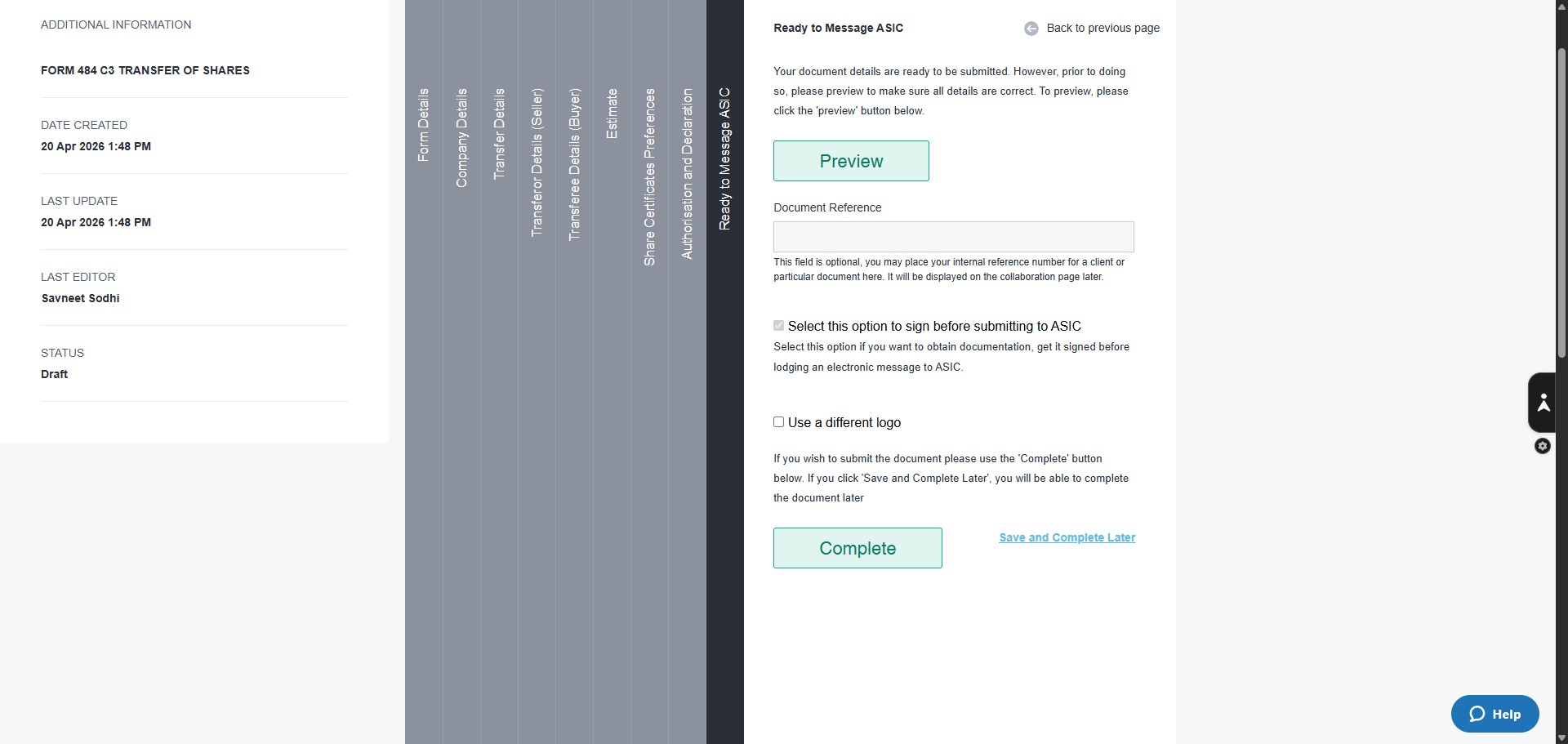
Click on "Preview" to self-check the information entered before submitting for review.
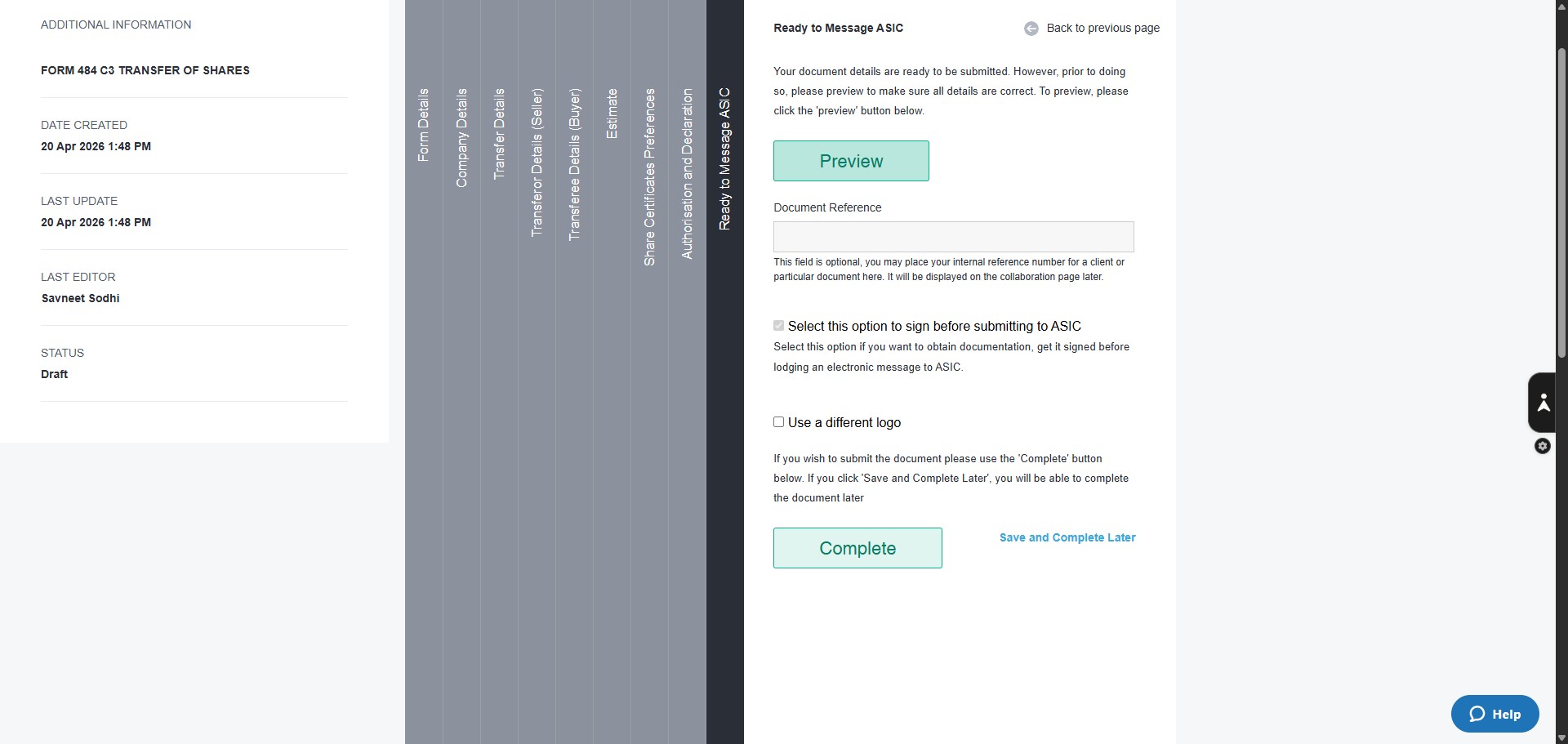
Click on "Save and Complete Later, And then once the document is saved in NowInfinity, ensure you can see it under Saved Documents. Let the manager know it's ready for review. Do not hit Complete.